Online Application System User Manual
Last updated: 2026-04-28
Table of Contents
- System Overview
- Account Registration and Email Verification
2.1 Account Registration
2.2 Email Verification (Activation) - Login
- Resetting Your Password
- Application
5.1 Creating an Application
5.2 Entering Application Information
5.3 Uploading and Submitting Required Documents - Managing Application Information
6.1 Managing Entered Information
6.2 Checking Application Status and Result - Examination Fee Payment
7.1 Checking Examination Fee Payment Instructions - Downloading Examination Admission Ticket, etc.
- Resubmitting Documents
9.1 When Documents Are Returned for Correction
9.2 When Additional Submission Is Requested - User Account Settings
- Checking Notifications
- FAQ (Frequently Asked Questions)
- Contact Information
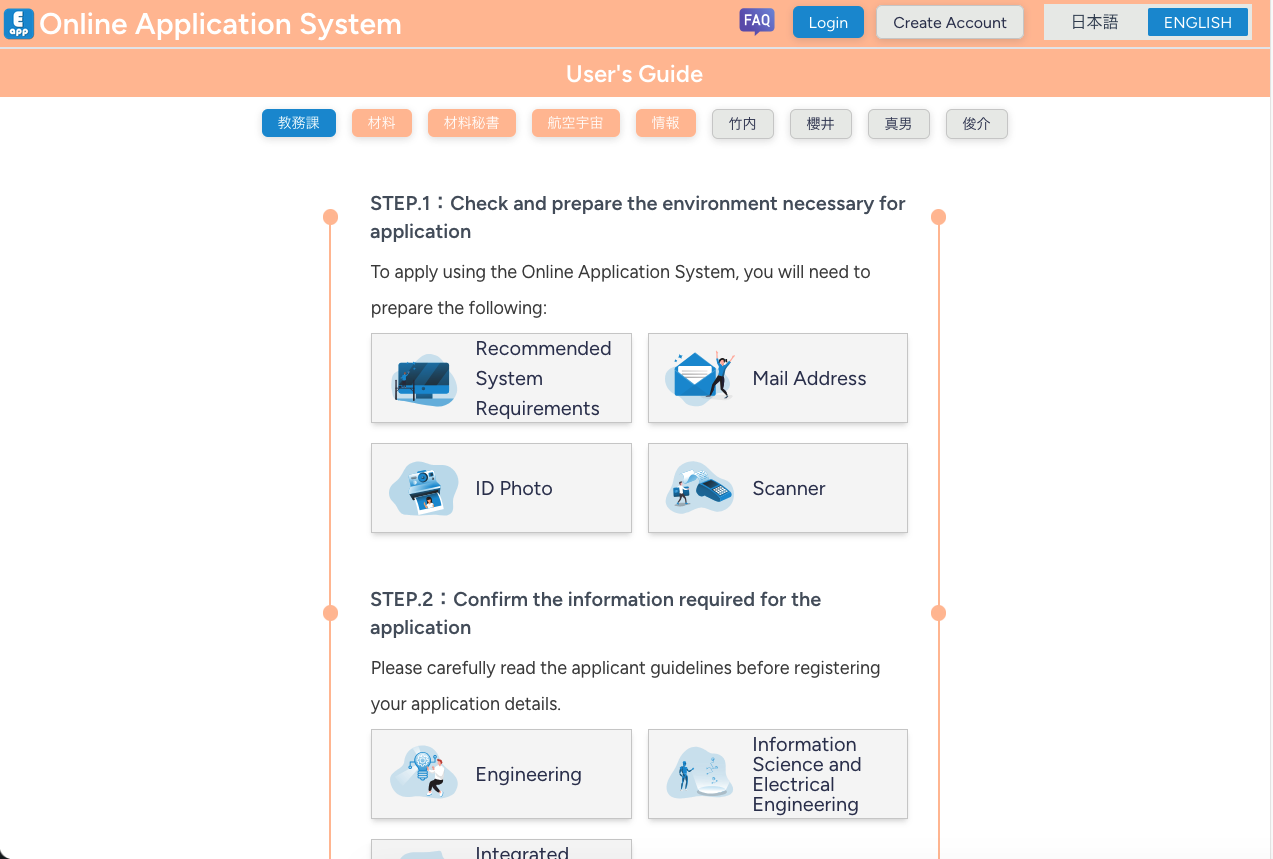
1. System Overview
This system is the online application system for graduate school entrance examinations of:
- Graduate School of Engineering, Kyushu University
- Graduate School of Information Science and Electrical Engineering, Kyushu University
- Interdisciplinary Graduate School of Engineering Sciences, Kyushu University
Main Functions
- Account registration
- Login
- Creation and management of applications
- Submission of required documents
- Checking application status
- Downloading examination admission ticket and related documents
- Resubmission of documents
- Managing account information
- Checking system notifications
Requirements for Use
- To use this system, account registration and email address verification (activation) for the registered email address must be completed in advance.
- The system may not be accessible during maintenance periods. Please follow the information displayed on the top page and login page.
2. Account Registration and Email Verification
2.1 Account Registration
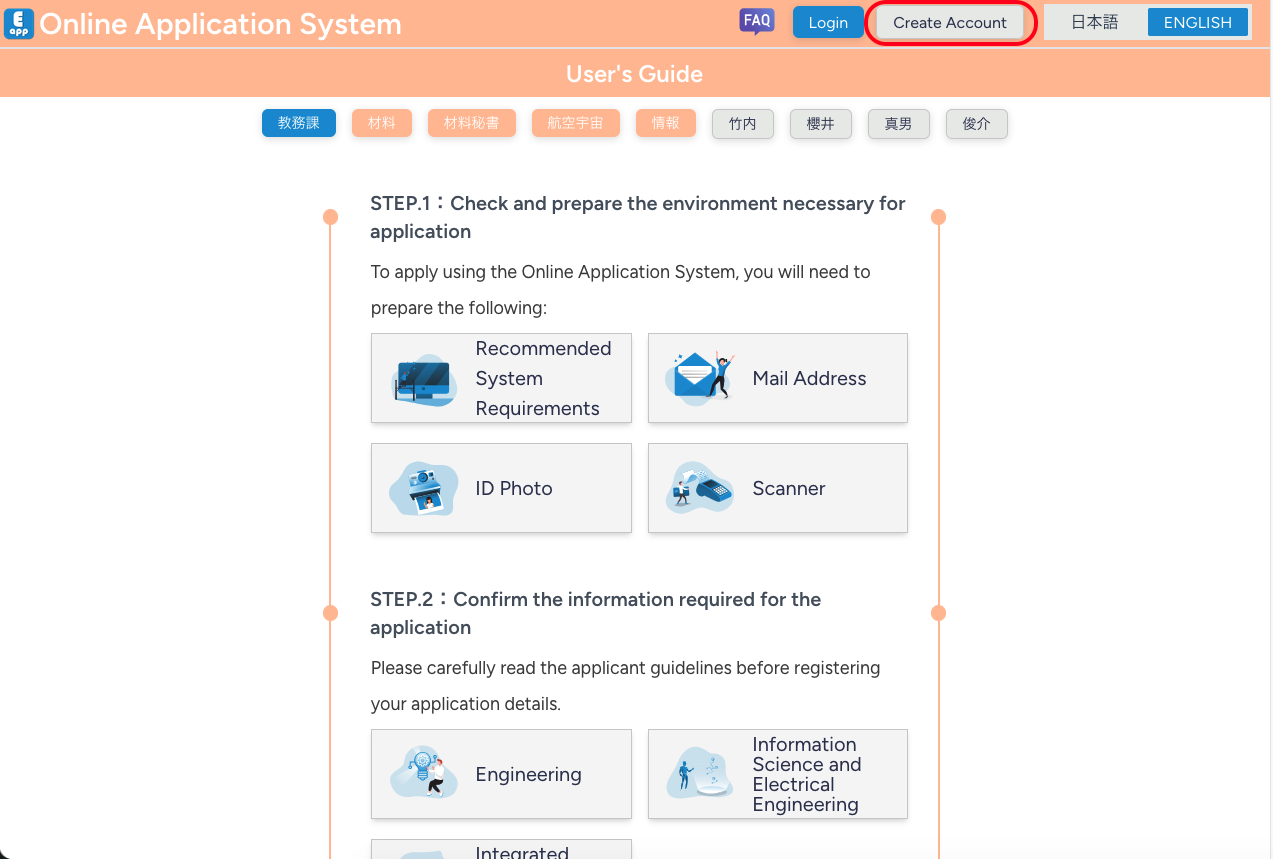
- On the top page or login page, click the "Create Account" button.
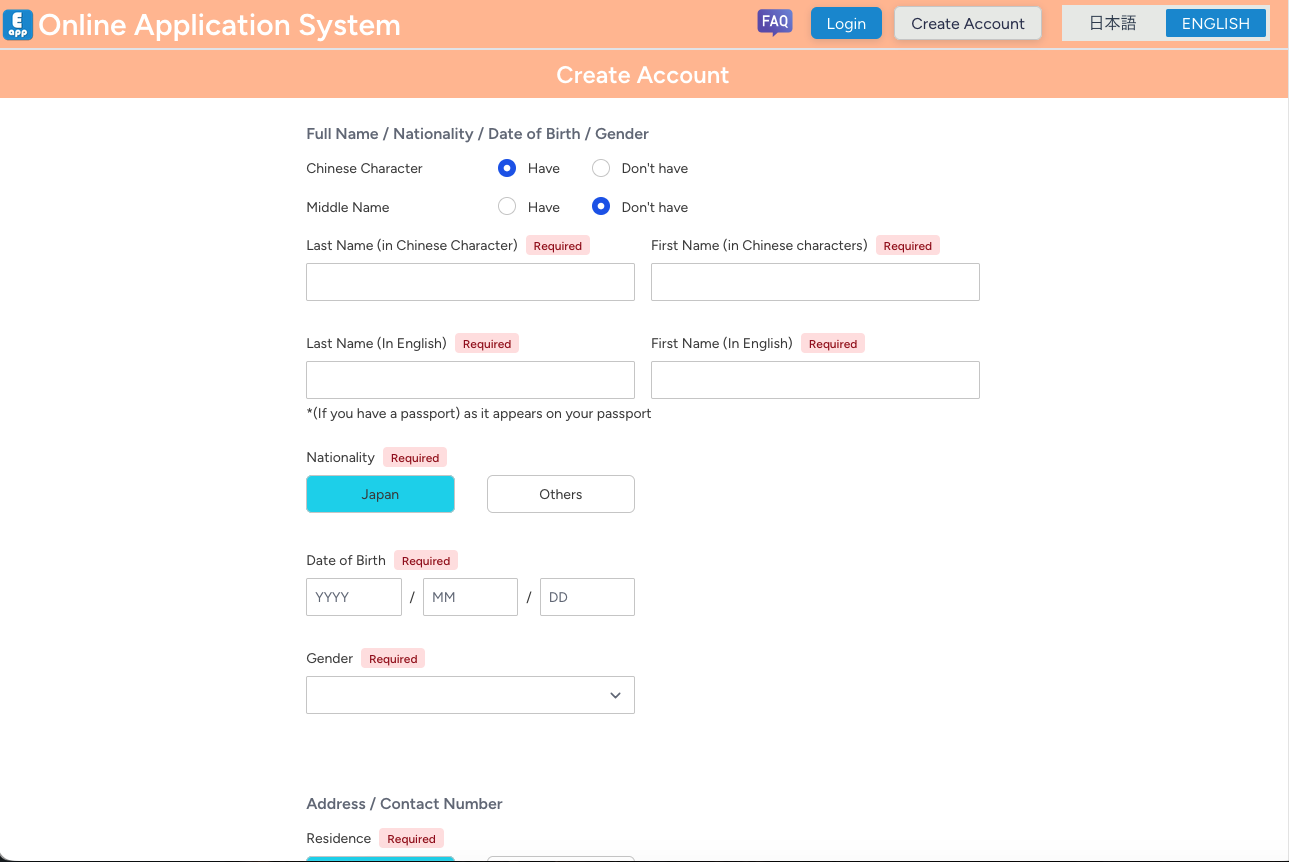
- Enter the required information in the registration form.
- Name (Kanji name and Roman alphabet notation, if applicable)
- Nationality
- Date of birth
- Gender
- Address
- Contact information
- Email address
- Password
- Agreement to the Terms of Use
- Click "Register".
- After registration is completed, a confirmation email will be sent to the email address you entered.
2.2 Email Verification (Activation)
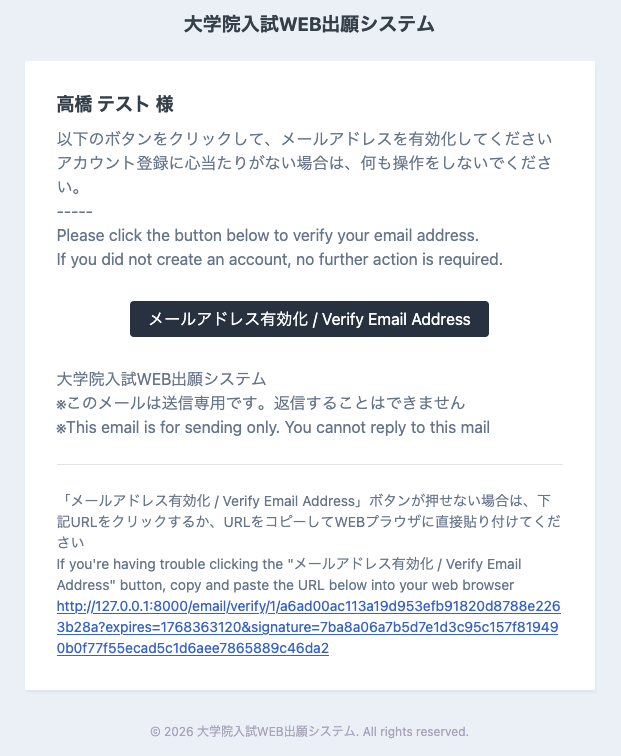
- After completing account registration, an email verification message will be sent to your registered email address.
- In the received email, click the button or link labeled "メールアドレス有効化 / Verify Email Address".
- After clicking the link, your email address will be activated and you will be able to login to your MyPage.
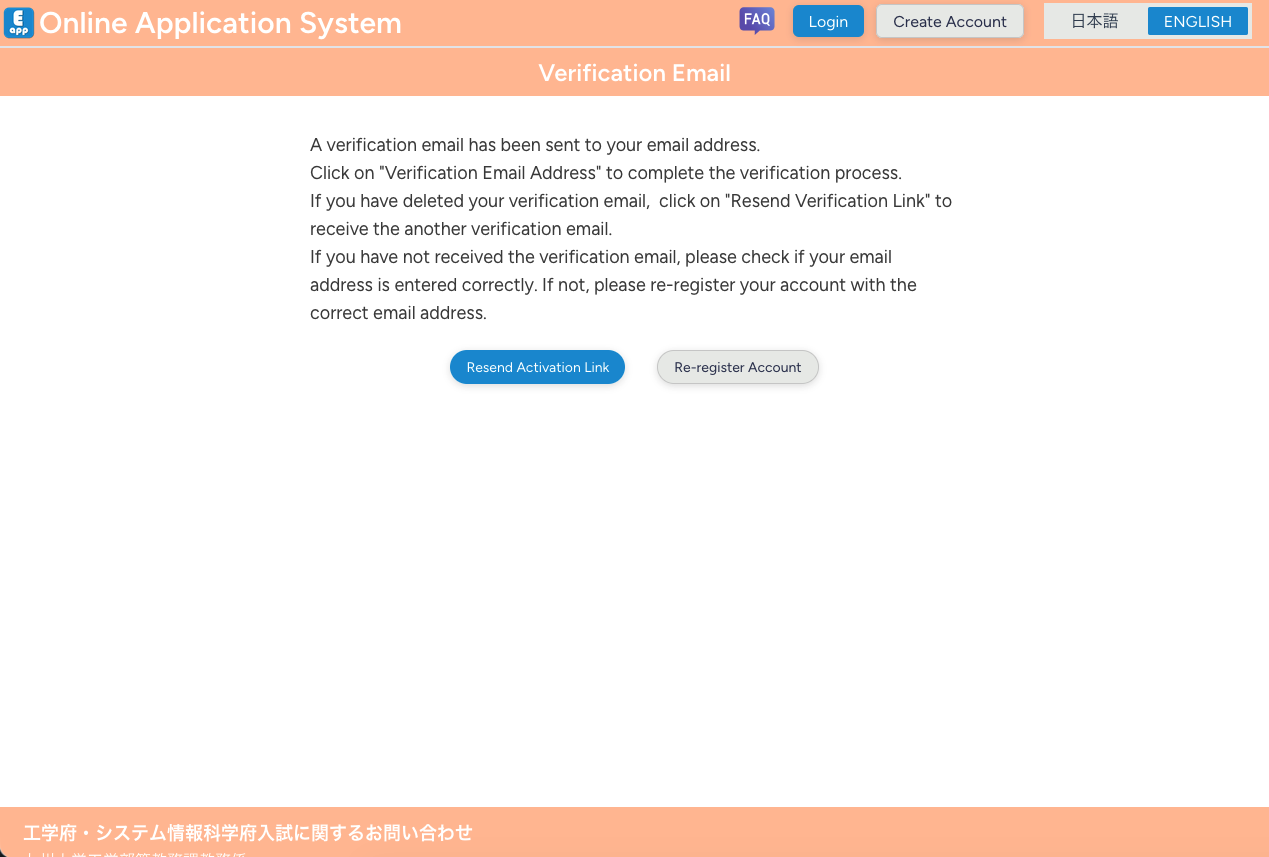
- If you try to login from the login form before activating your email address, you will be redirected to the "Verification Email" page.
- If you cannot find the verification email, please click "Resend Activation Link" on the guidance page to resend the email verification message.
3. Login
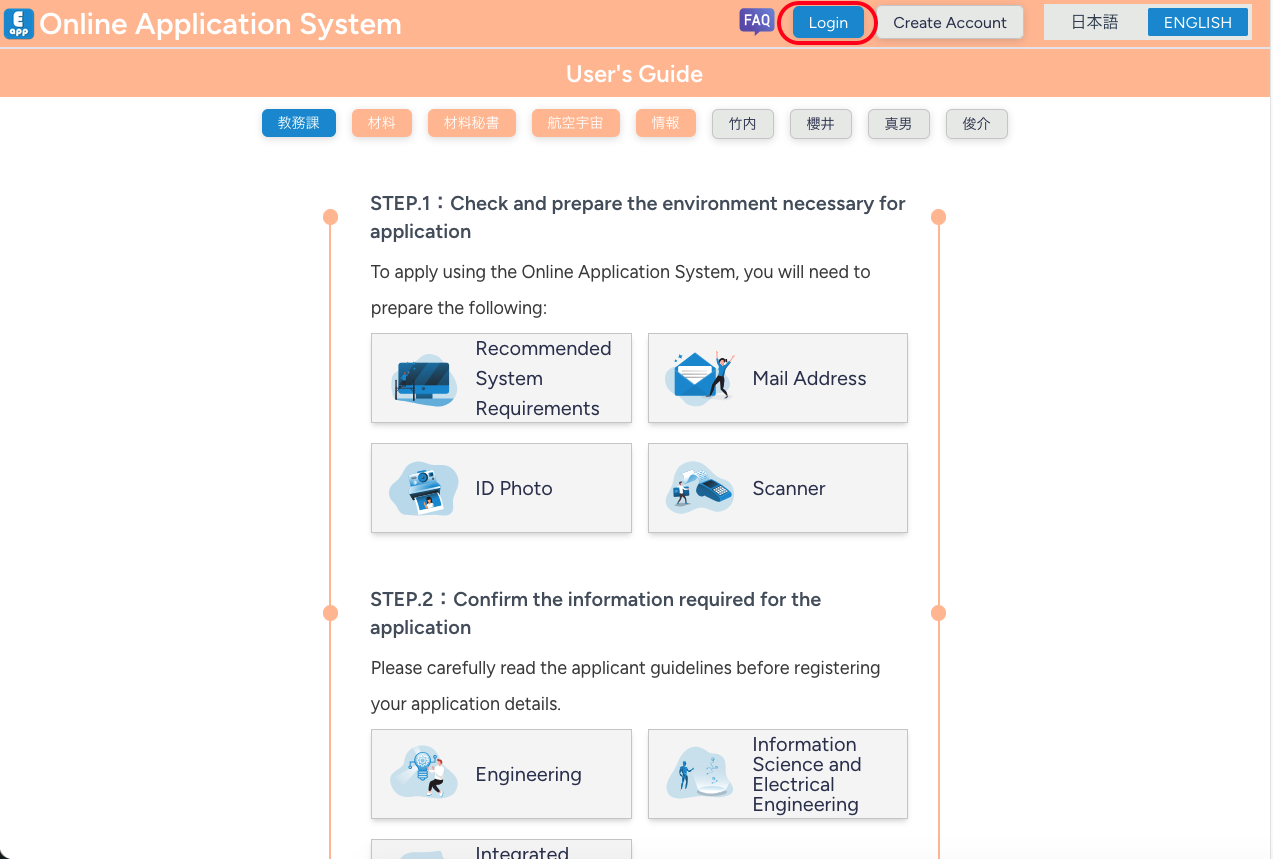
- On the top page, click the "Login" button.
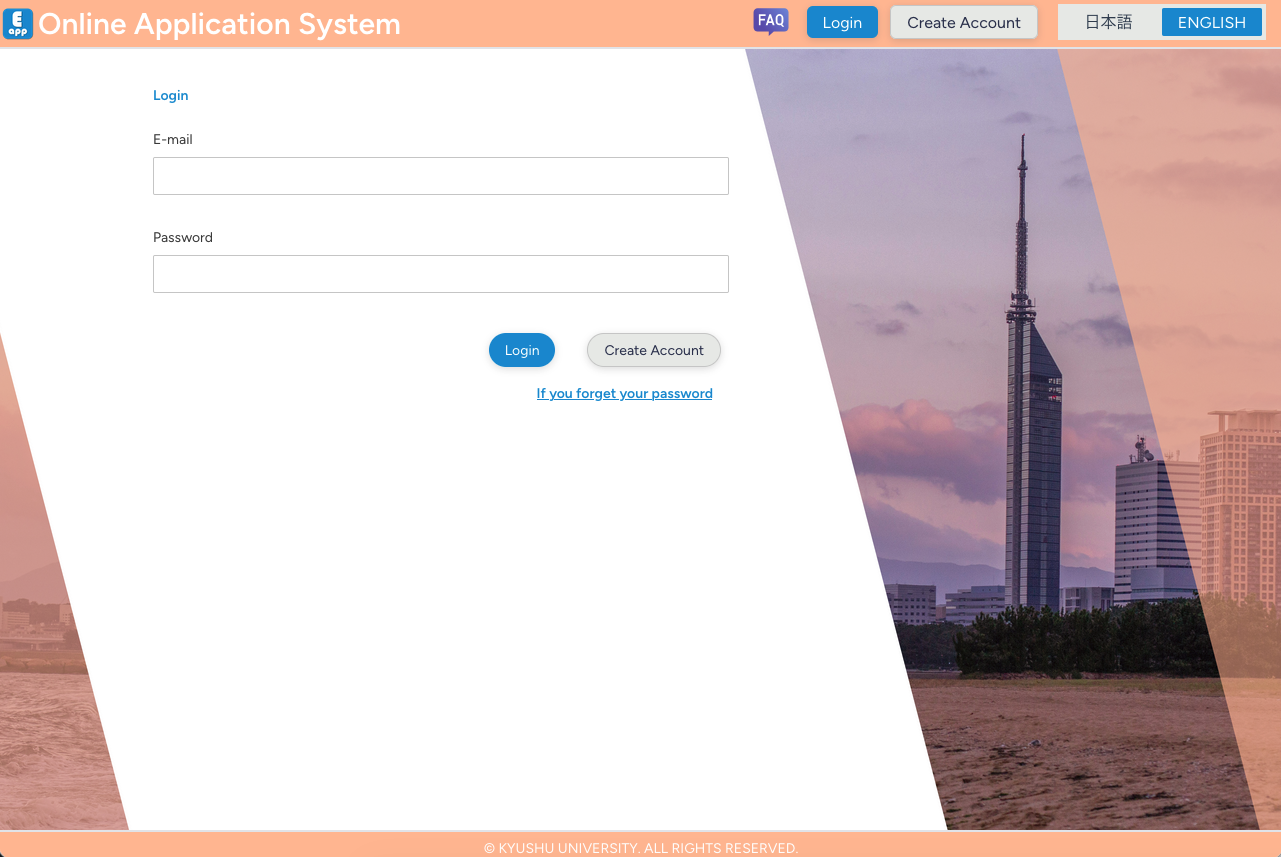
- Enter your registered E-mail and Password.
- Click "Login".
- If you login successfully, you will move to the "HOME" page.
- If your email address has not yet been verified, you will be guided to the "Verification Email" page.
4. Resetting Your Password
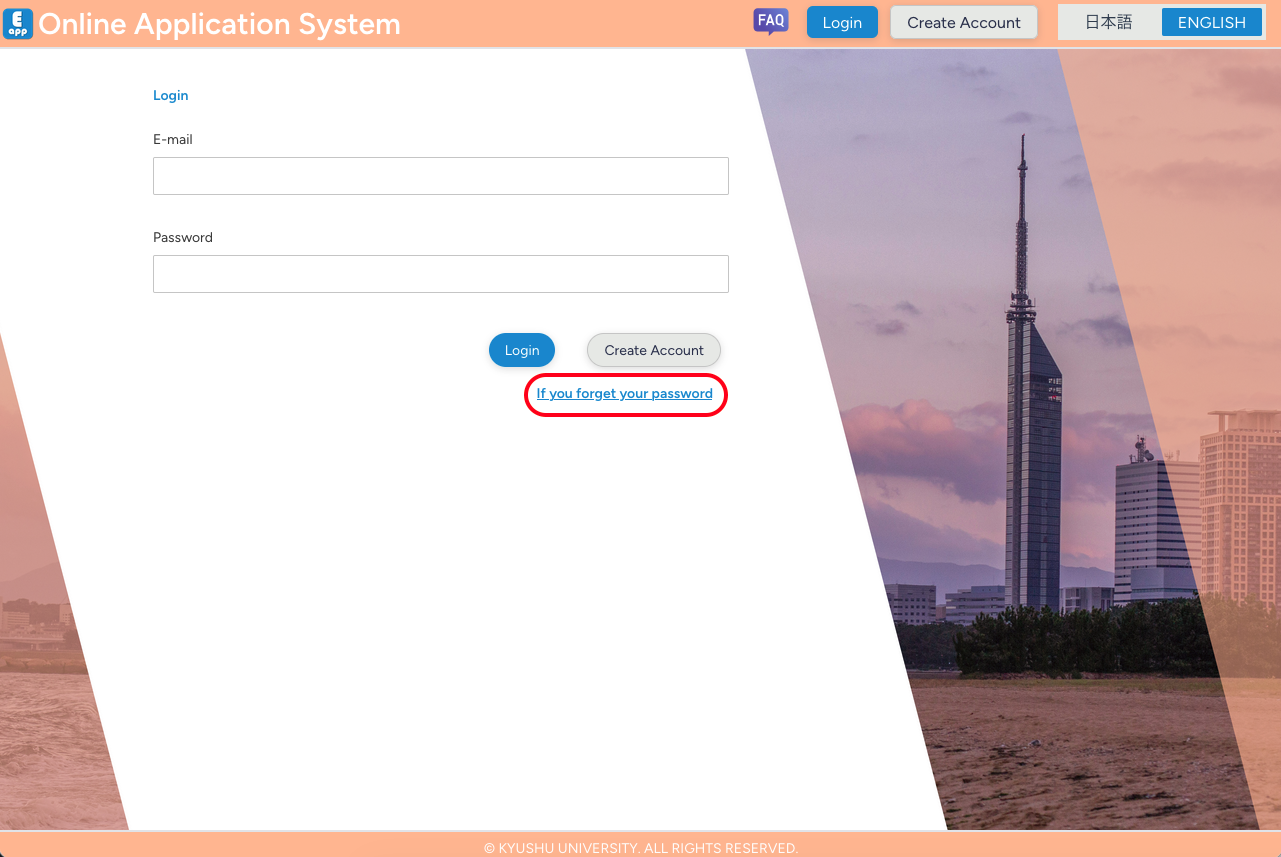
- On the login page, click "If you forgot your password".
- Enter your registered email address and click "Send".
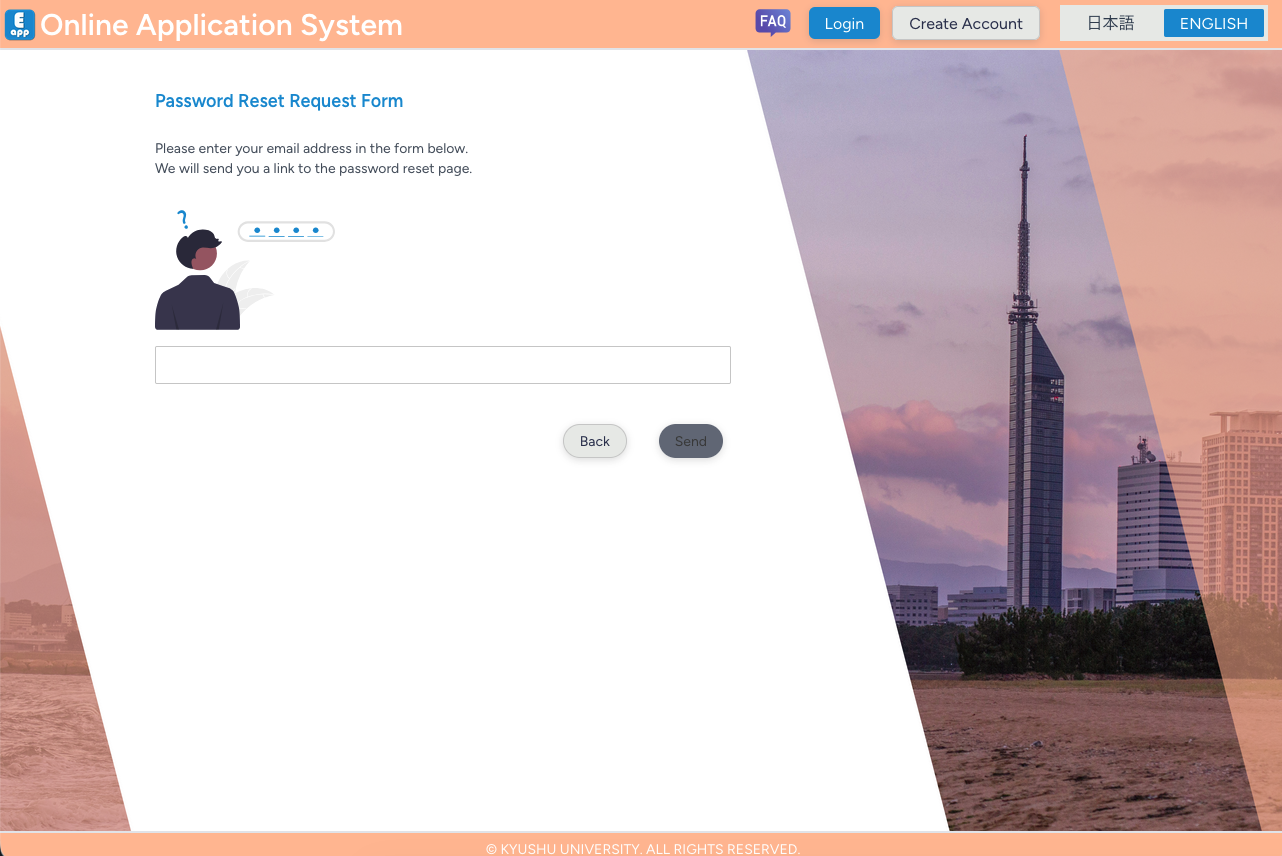
- A password reset link will be sent to your registered email address.
- Click the link in the email to open the "Password Reset Form" page.
- Set a new password and click "Change".
- After completion, you can login with your new password.
5. Application
The application process proceeds roughly in the following order:
- From "HOME", click "Create Application".
- On the "Create Application Form", select the examination category and other items, then click "Create Application".
- On "Application Details", enter the required information (desired information, personal information, background information, achievement information, etc. as required).
- After entering all required information, click "Apply".
- On "Submit Documents", upload each required document.
- After uploading all required documents, click "Submit".
- When "Submit" is completed, your "application is completed".
- If you choose "Application Request and Work History Review" as your "Application Category", you will be redirected to the page "Request Form" after "Create Application".
- On that page, you must enter the required information and submit the application. (See FAQ.)
5.1 Creating an Application
- From "HOME", click "Create Application".
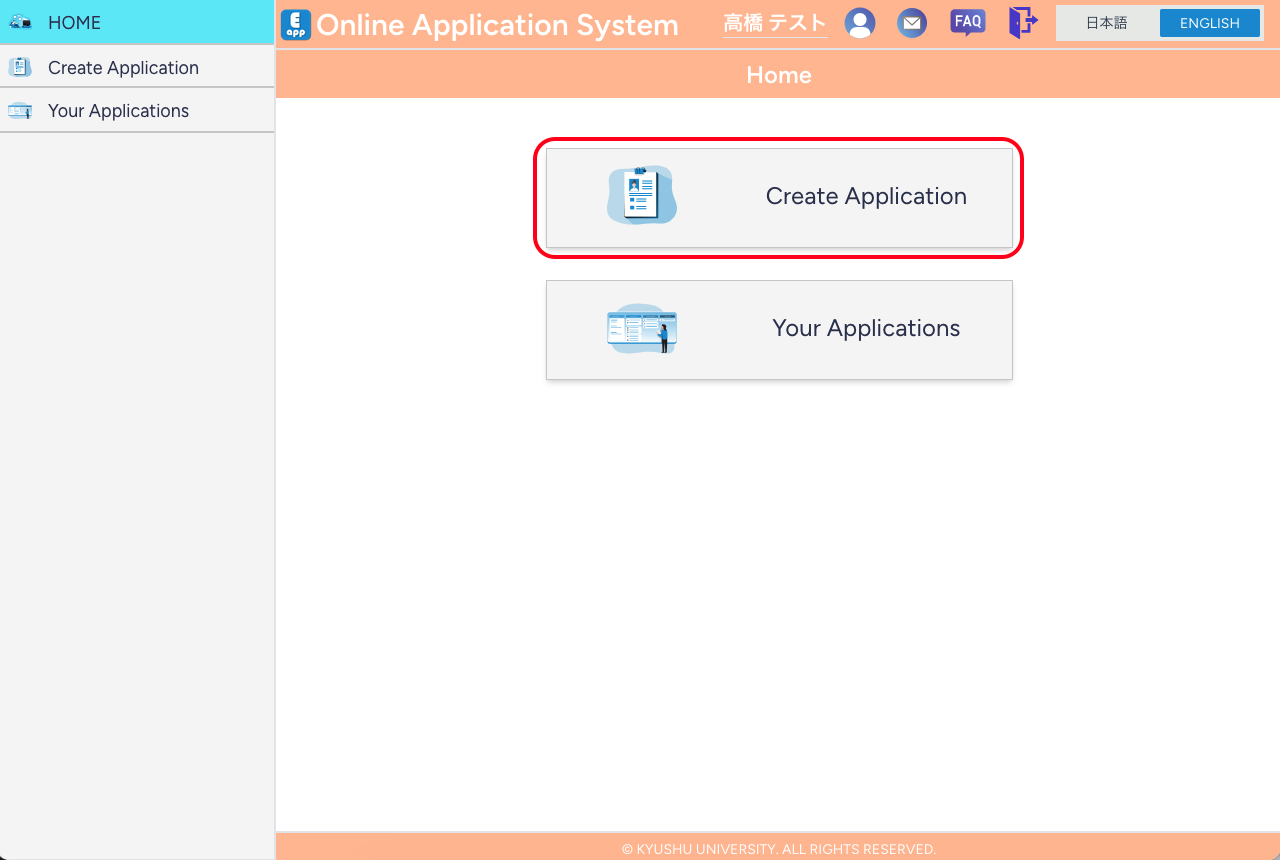
- Follow the on-page instructions and enter the required information:
- Graduate School you wish to apply
- Program
- Examination category
- Desired Department
- Application category: Application, Preliminary Screening for Application Eligibility, Application Request and Work History Review, etc.
- Language of entry: Only if required
- Click "Create Application".
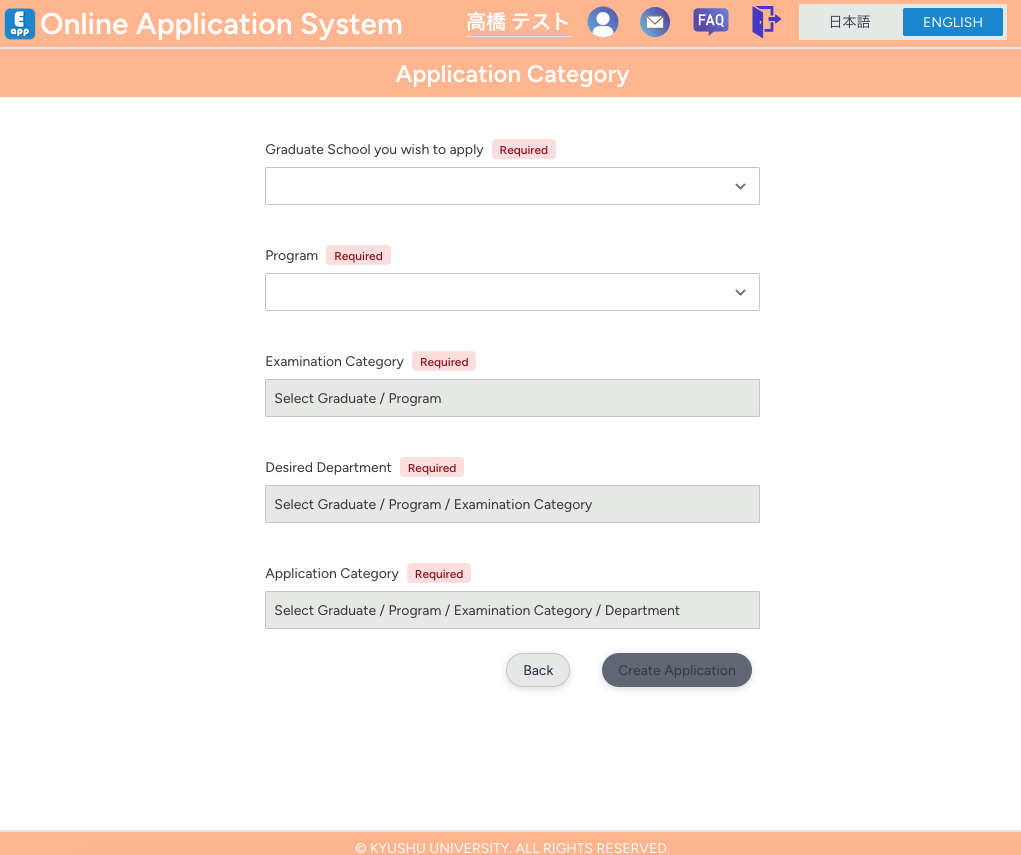
- After "Create Application" is completed, you will proceed to register application information.
- If you selected "Application Request and Work History Review" as the application category, you will move to the page "Request Form" and must enter the required information and submit the application.
5.2 Entering Application Information
After "Create Application", enter the required information in order (required items differ depending on the examination category).
If you continue directly from "Create Application" to enter information, proceed from step 4 below.
- From "HOME", click "Your Applications".
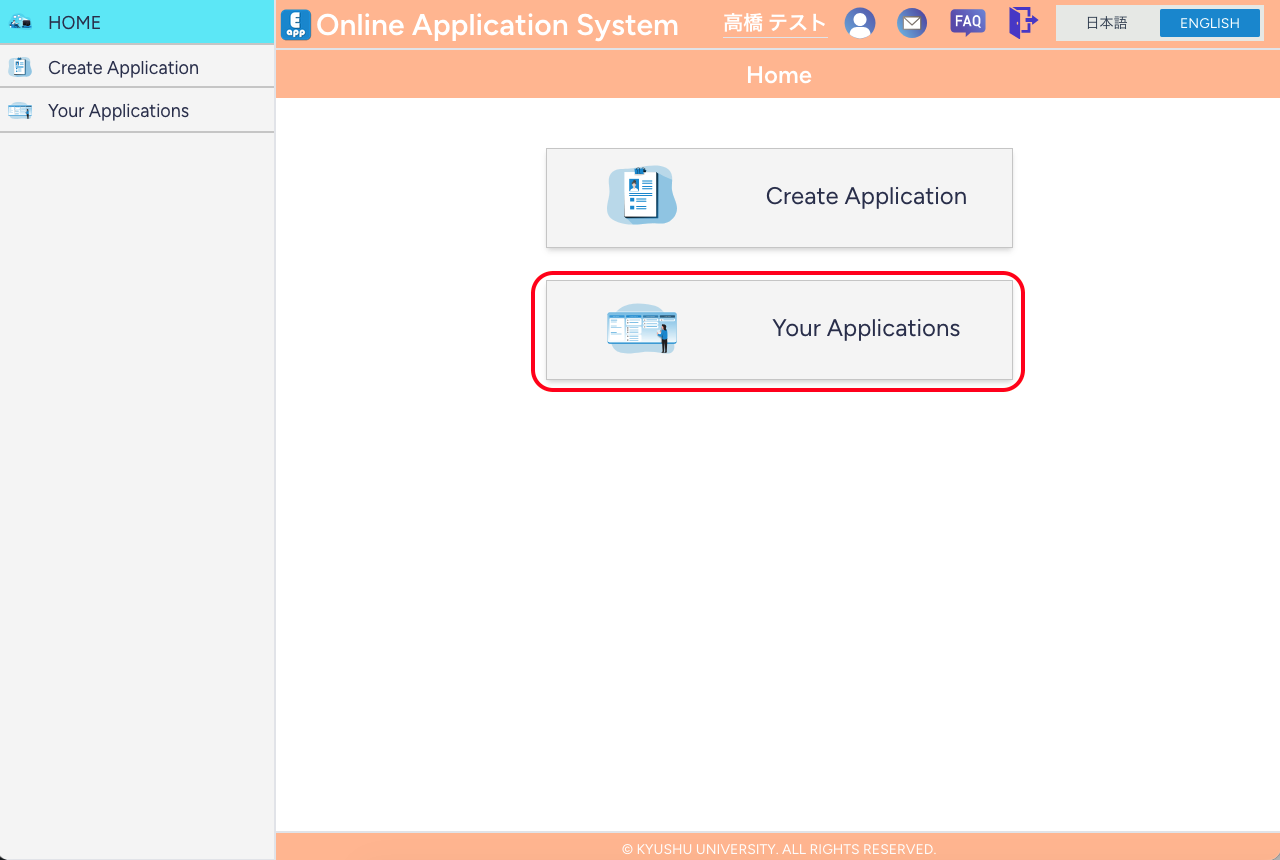
- From the "Your Applications", select the application for which you will enter information.
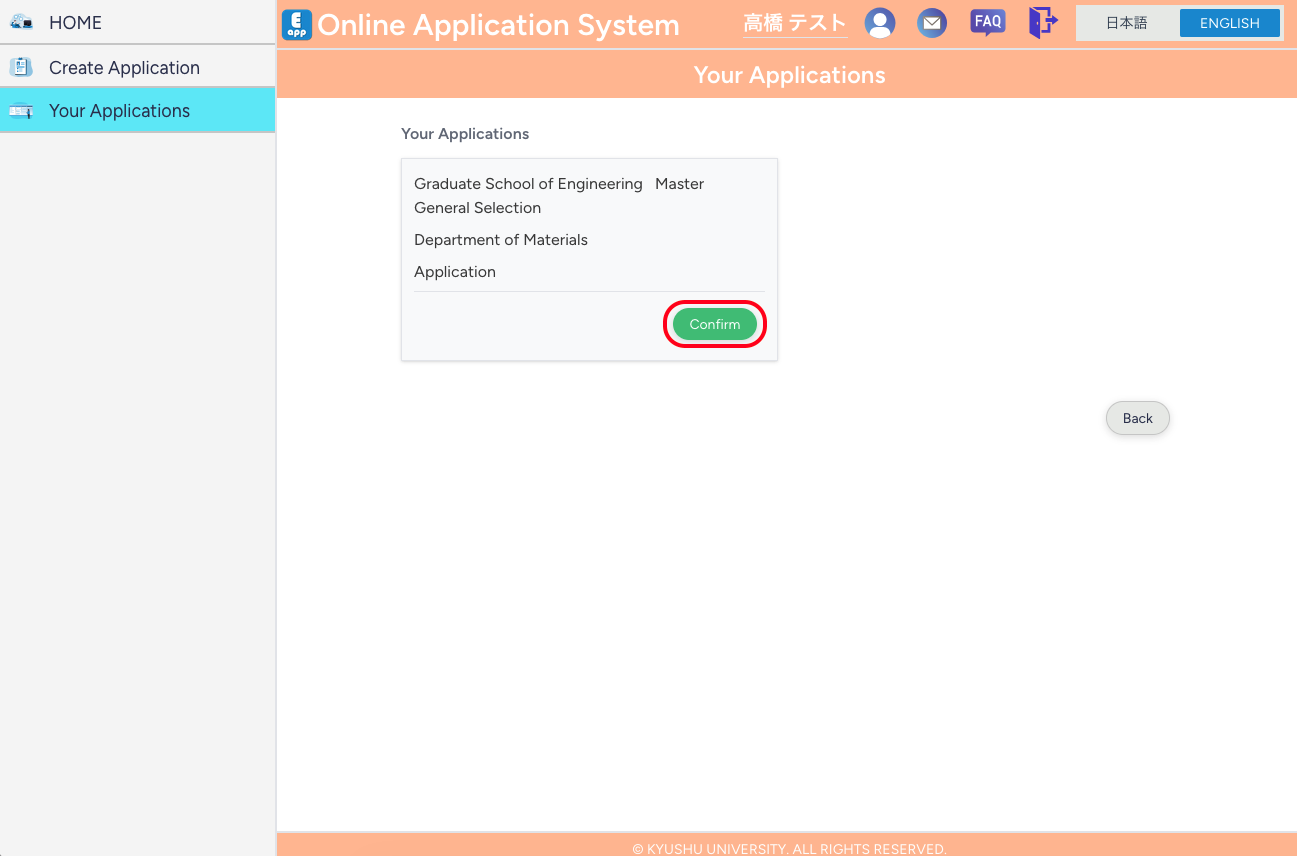
- From "About your Applications", click "Application Details".
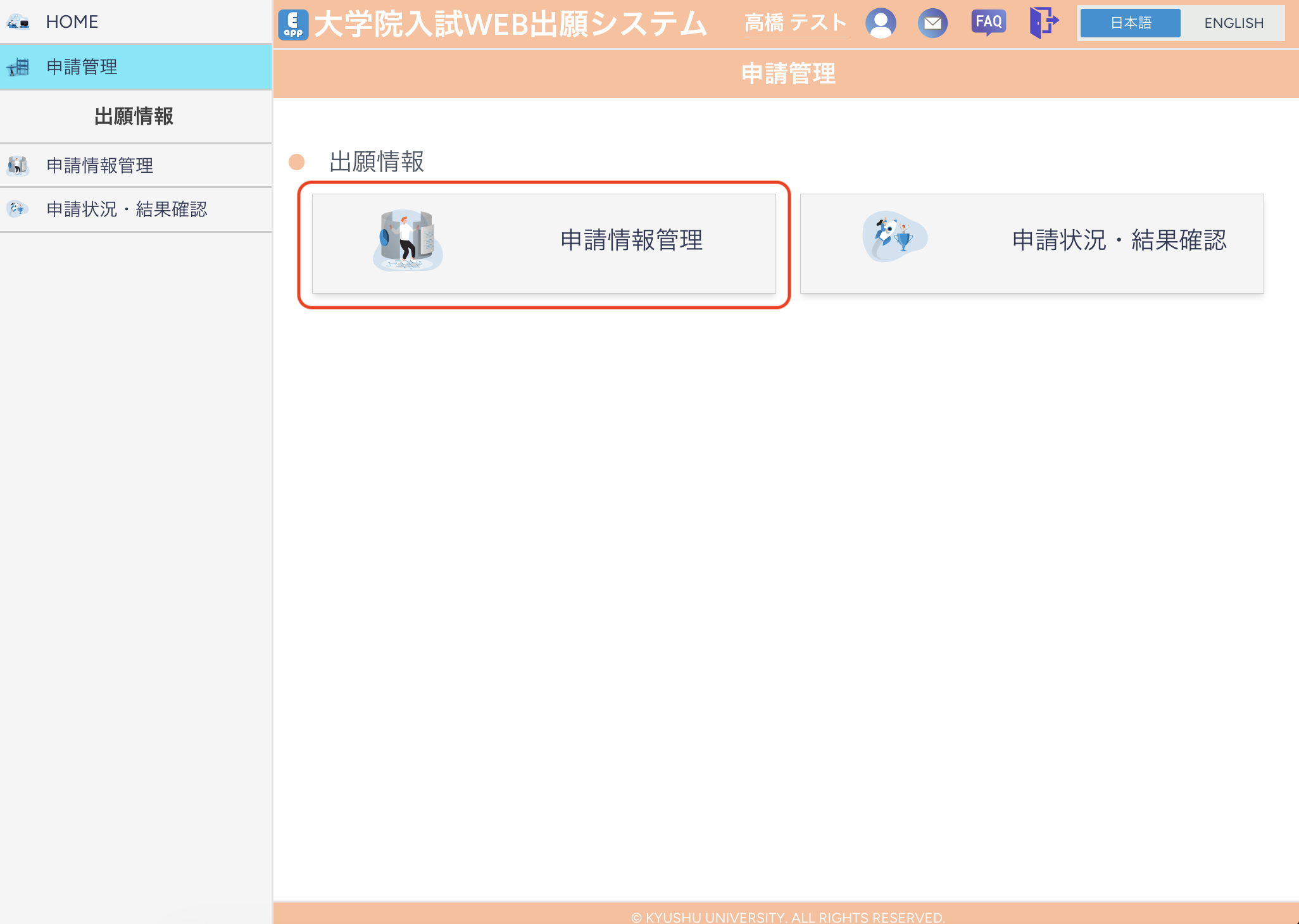
- Click "Create" for the section you want to enter (or "Edit" if the section has already been registered).
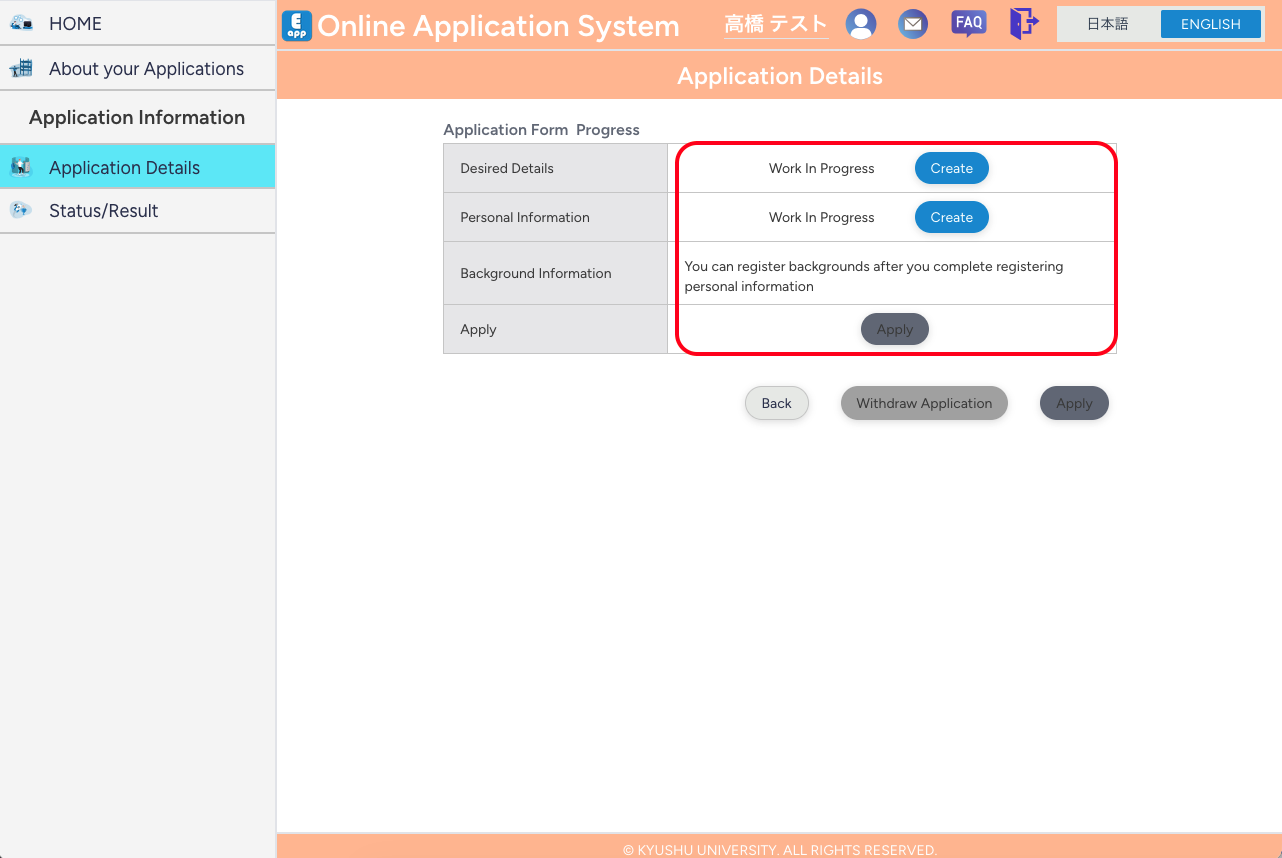
- Enter the required information following the input form.
- To temporarily save your input, click "Save"; to complete registration, click "Register".
- After all required information has been registered, click "Apply".
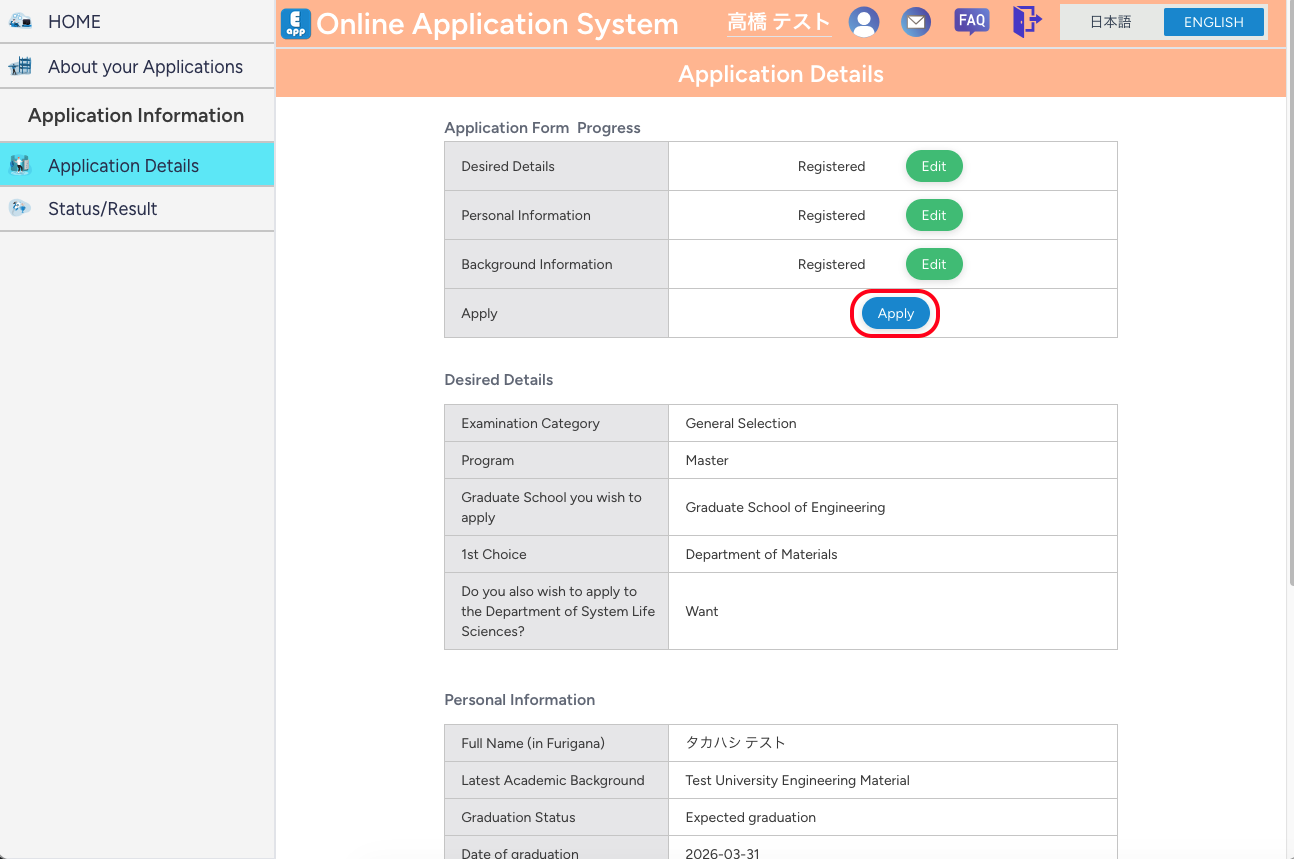
- You can change the registered information until you "Submit" the required documents on the "Submit Documents" page.
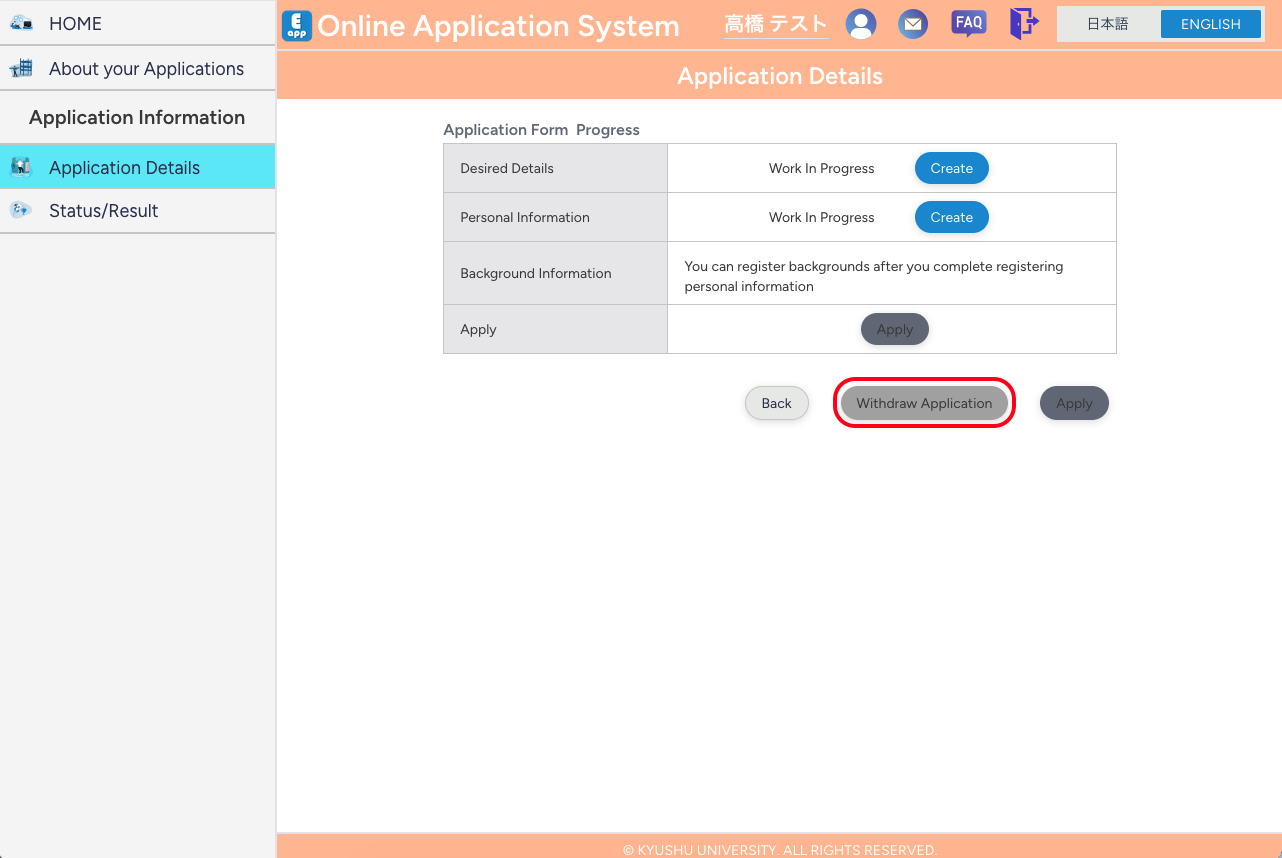
- Until you click "Apply", you can withdraw an application in progress by "Withdraw Application".
5.3 Uploading and Submitting Required Documents
After "Apply" has been completed, upload and submit the required documents. Your application is only complete after all required documents are submitted.
If you continue directly from "Apply" to upload and submit documents, start from step 4 below.
- From "HOME", click "Your Applications".
- From the "Your Applications", select the application for which you will upload and submit documents.
- From "Abput Your Applications", click "Submit Documents".
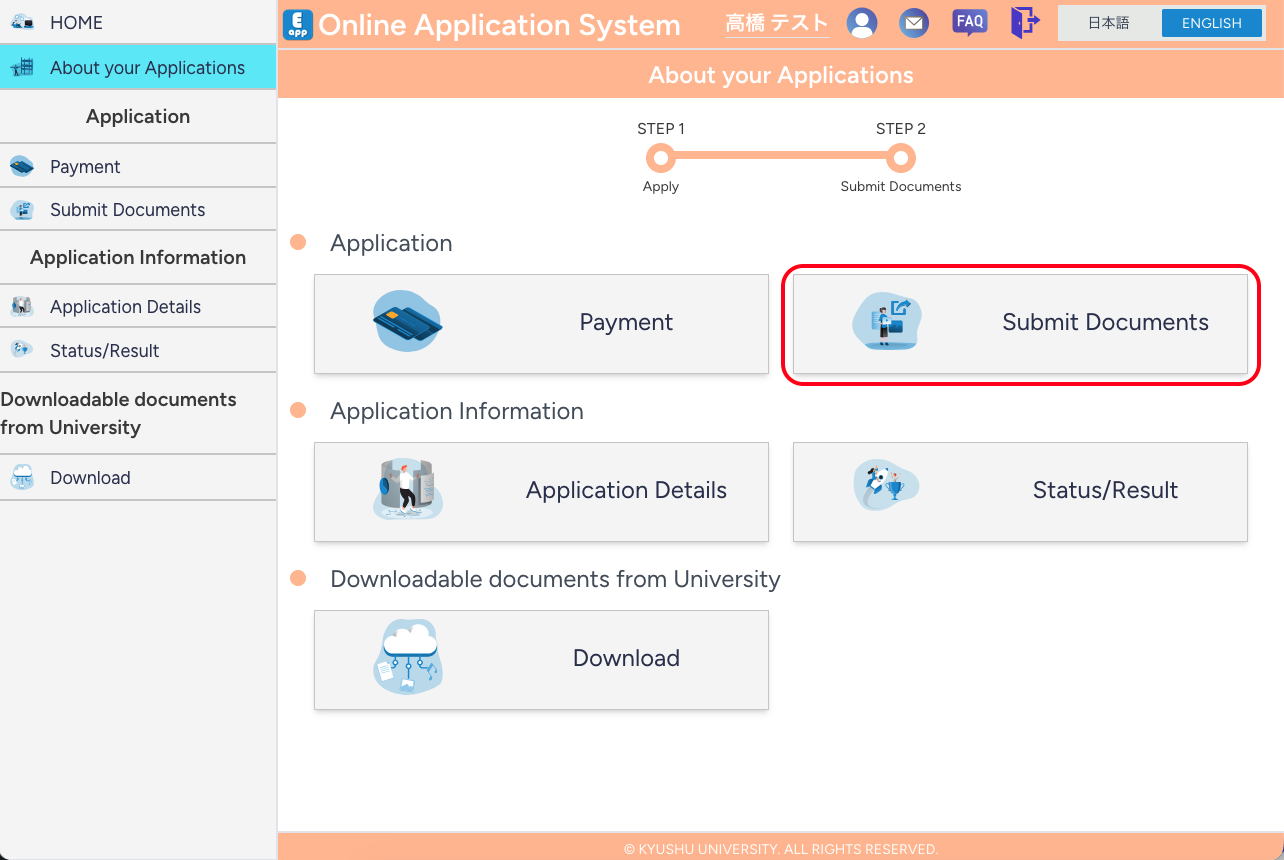
- On the "Submit Documents" page, check the list of documents that must be submitted.
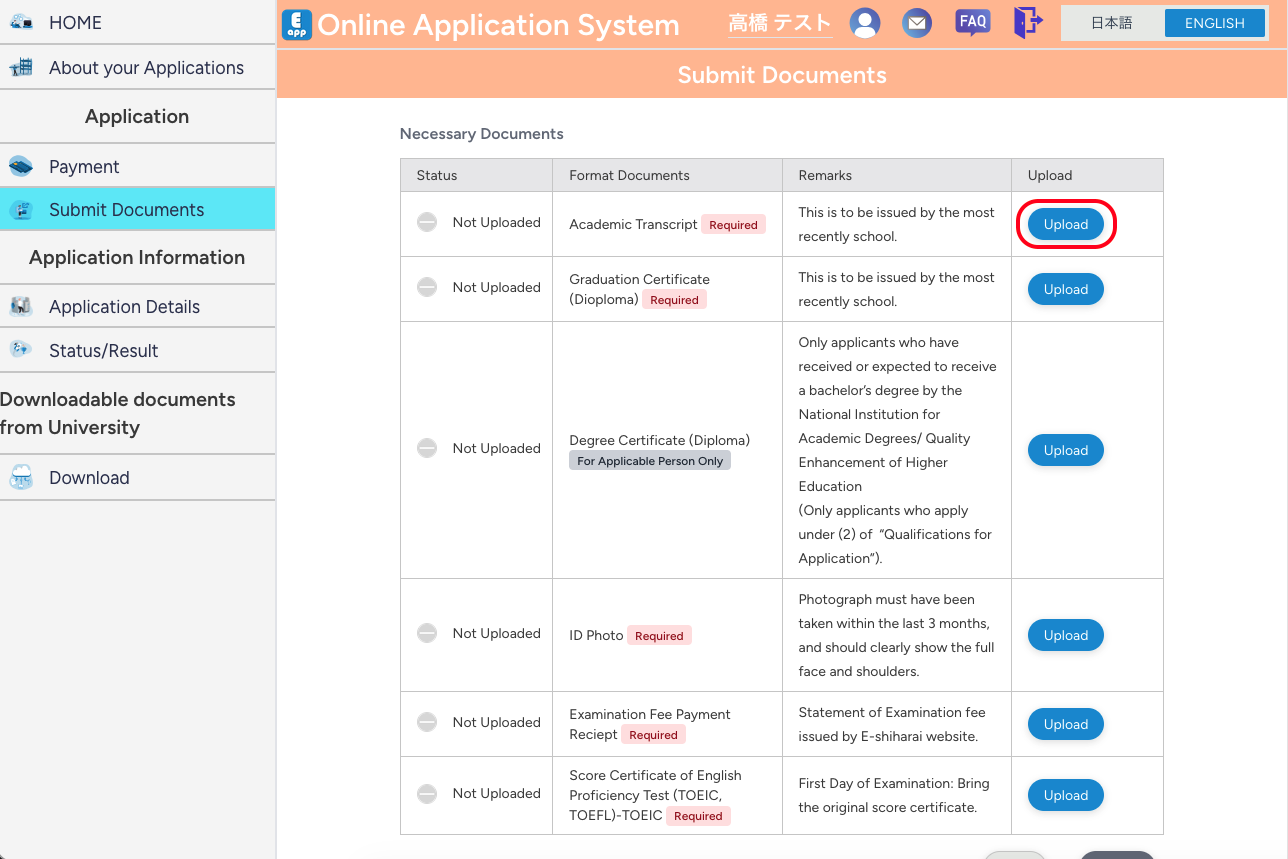
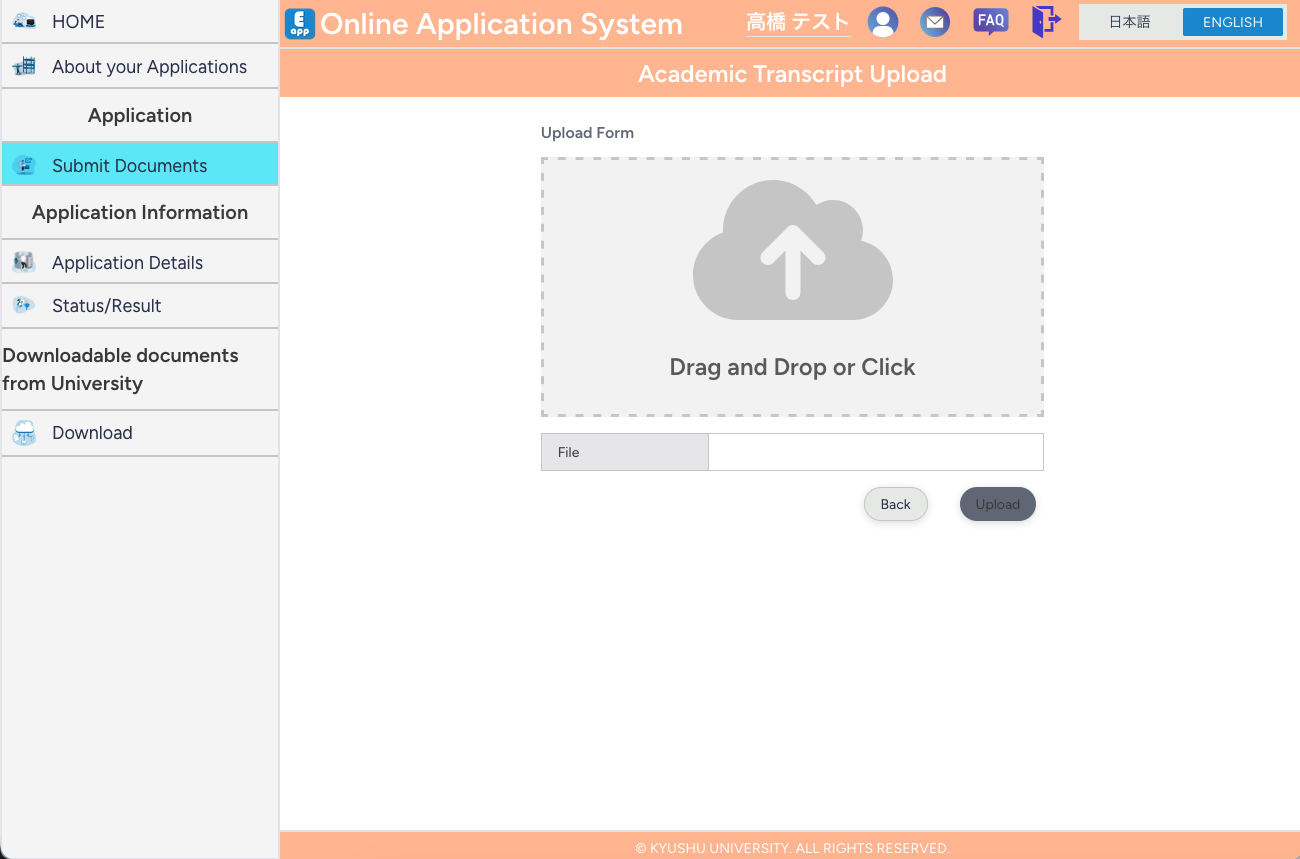
- For each document, click "Upload" to move to the "Upload" page.
- Select the appropriate file and upload it.
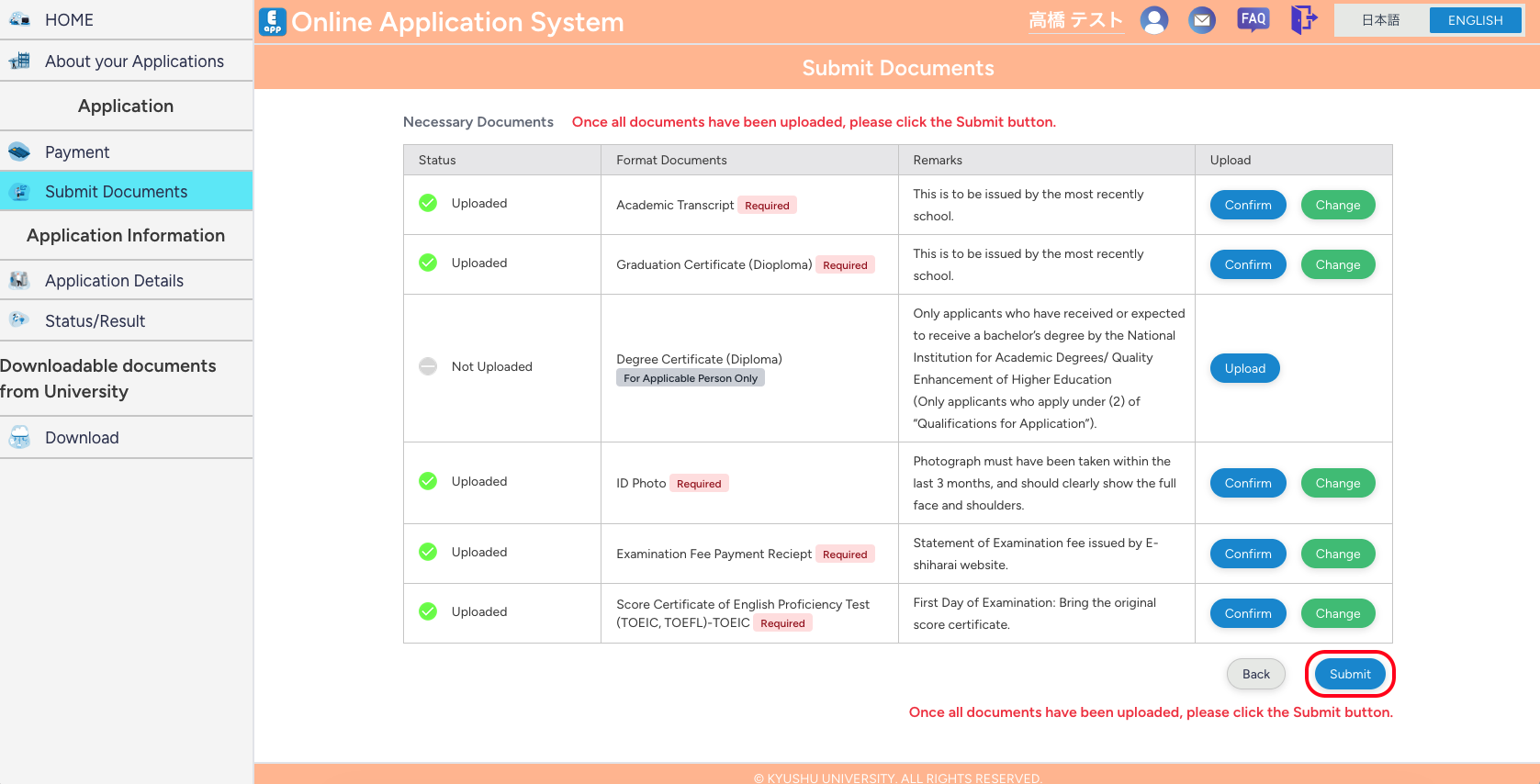
- After uploading all required documents, click "Submit" to complete the application.
6. Managing Application Information
6.1 Managing Entered Information
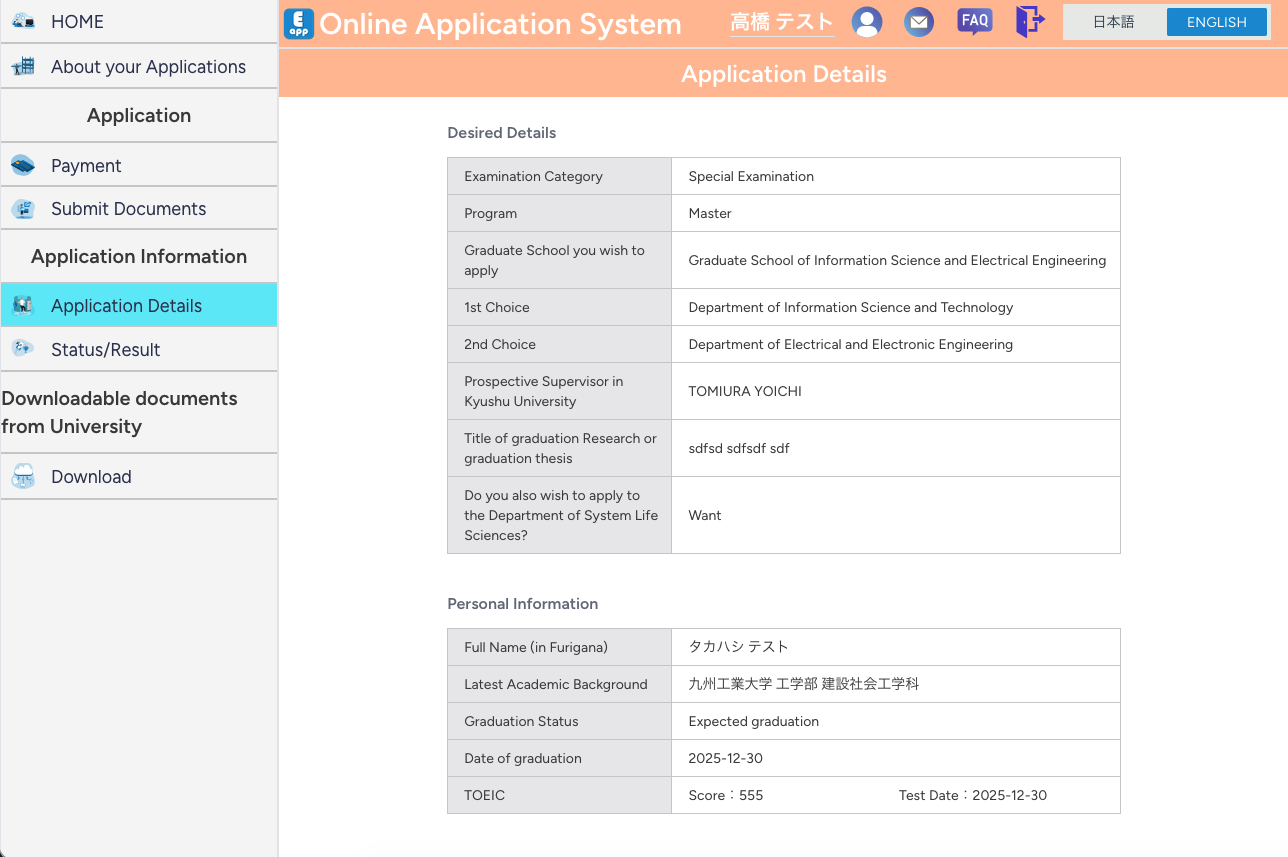
You can check and edit the information you have registered (desired information, personal information, background information, achievement information, etc.).
Editing is possible only until you "submit" the required documents on the "Submit Documents" page.
- From "HOME", click "Your Applications".
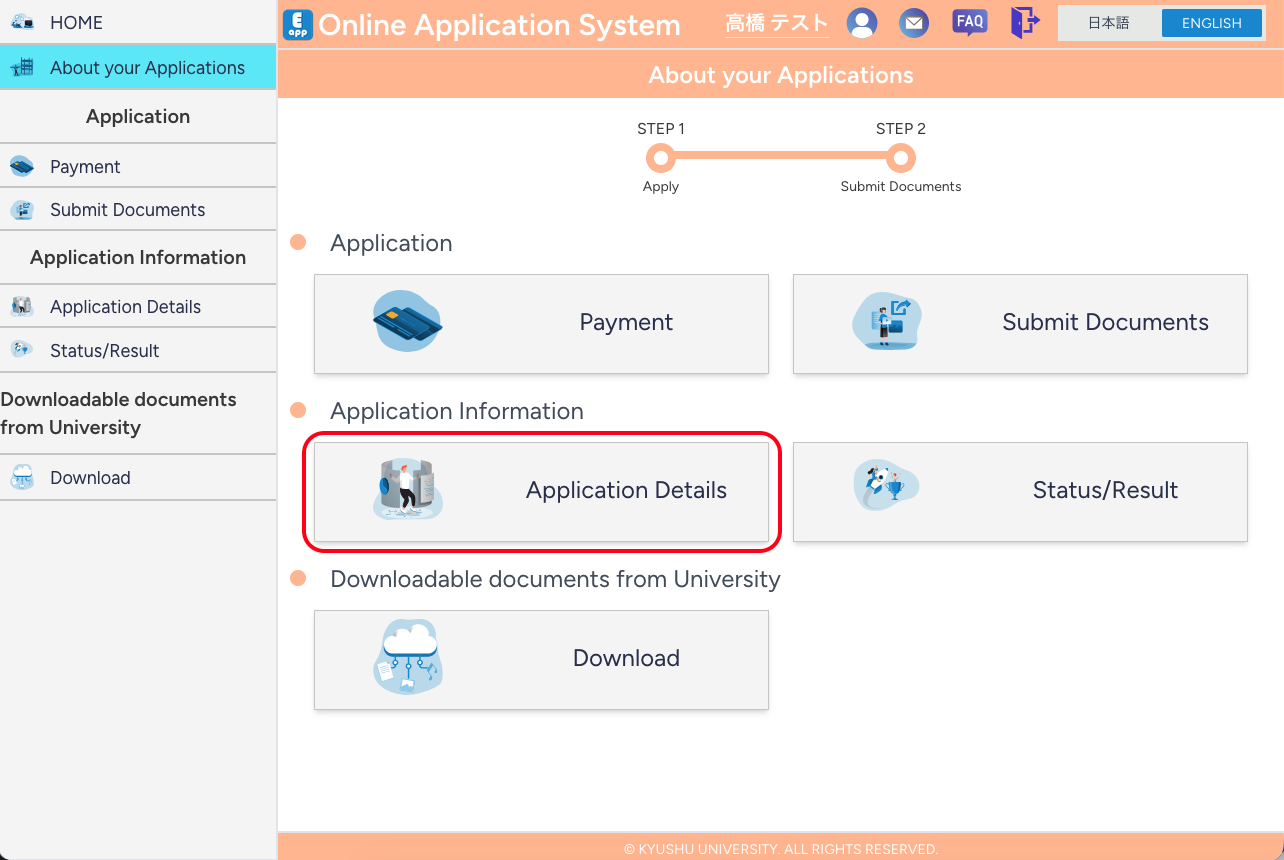
- From the "Your Applications", select the application whose information you want to check or edit.
- From "About Your Applications", click "Application Details".
6.2 Checking Application Status and Result
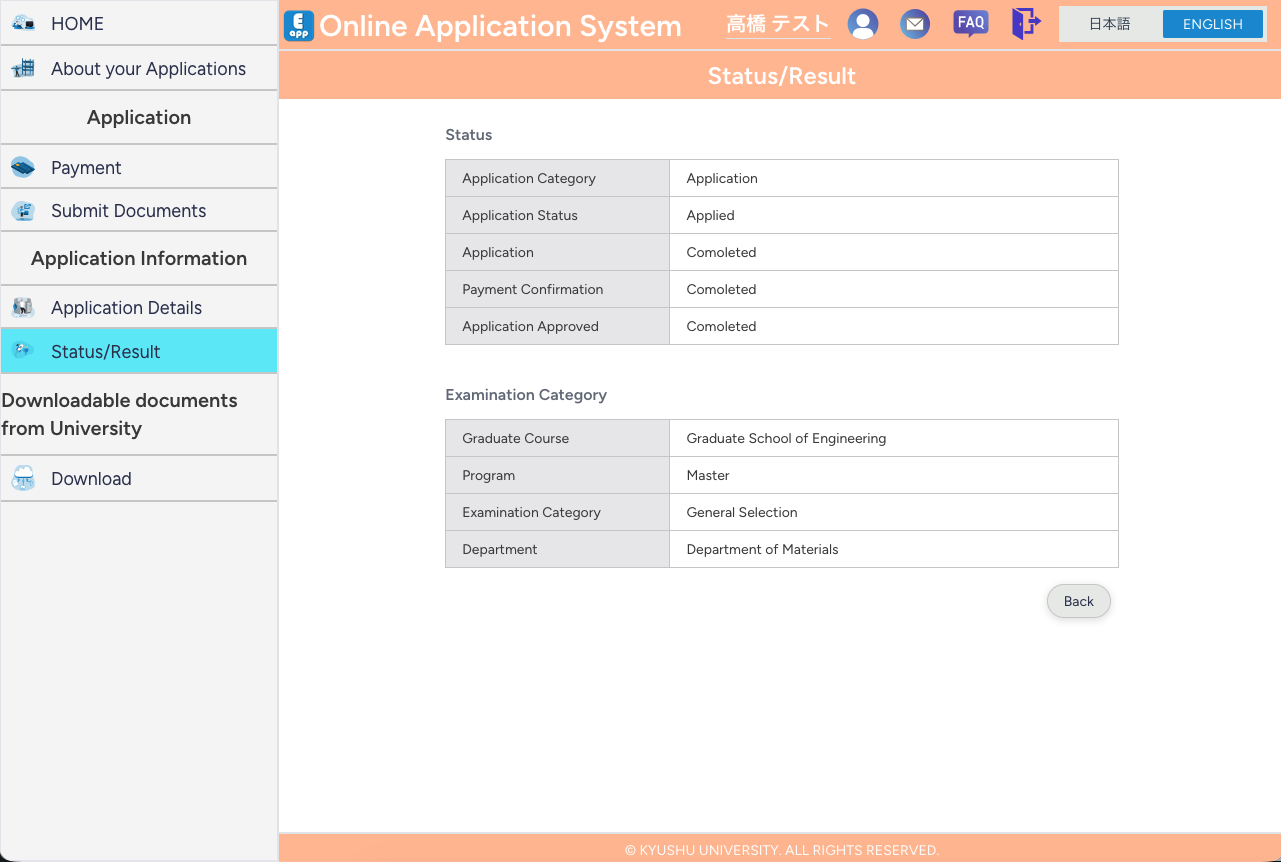
You can check:
- Examination category you applied for
- Application status and confirmation of examination fee payment
- Approval status of your application
- Results of various screenings (pre-screening, screening of work experience, etc.)
For examinations whose results are scheduled to be published on My Page, you can also check pass/fail results on this page.
- From "HOME", click "Your Applications".
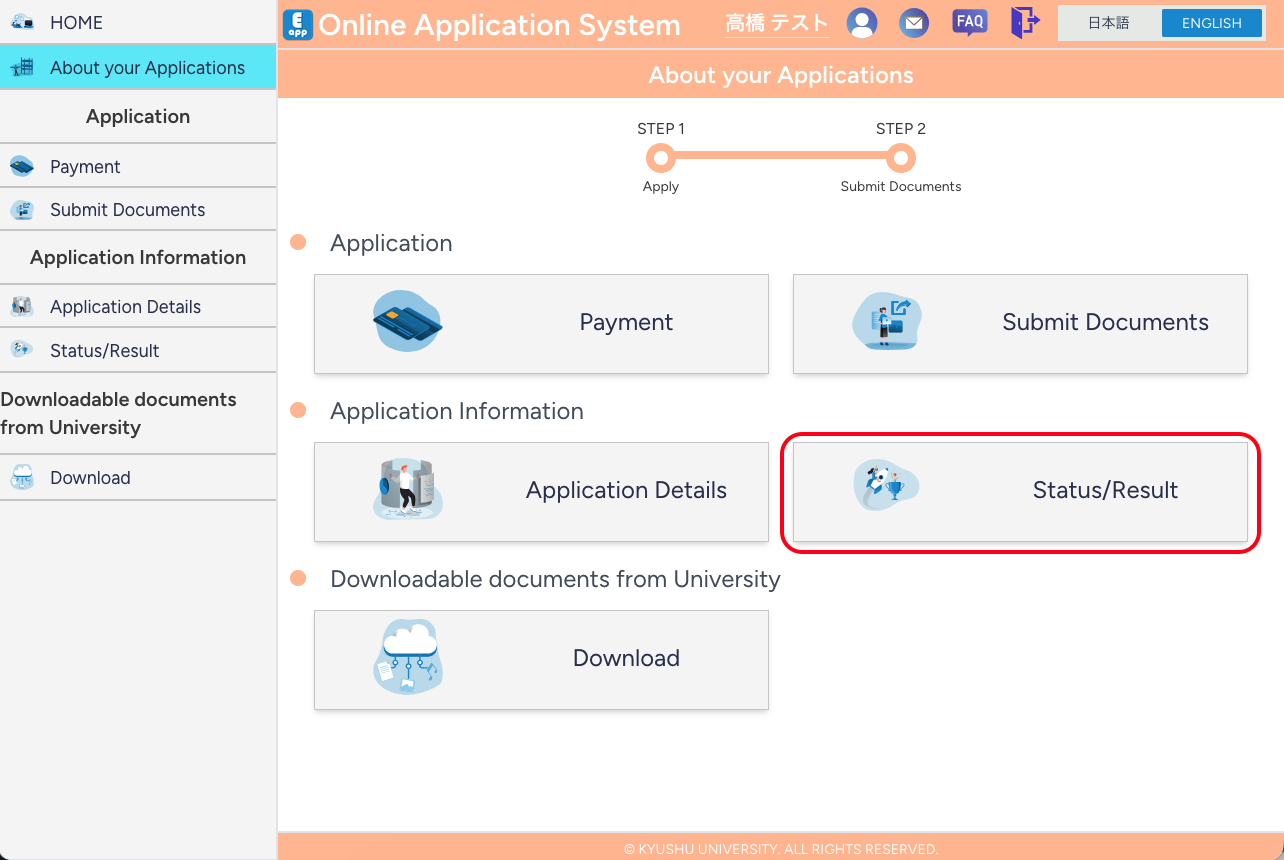
- From the "Your Applications", select the application to check.
- From "About Your Applications", click "Status/Result".
7. Examination Fee Payment
As a general rule, an examination fee is required for all examination categories.
(In some cases, the payment of the examination fee may be waived. Please check the application guidelines for the relevant examination category.)
Both payment of the examination fee and submission of proof of payment are required.
7.1 Checking Examination Fee Payment Instructions
On this page you can:
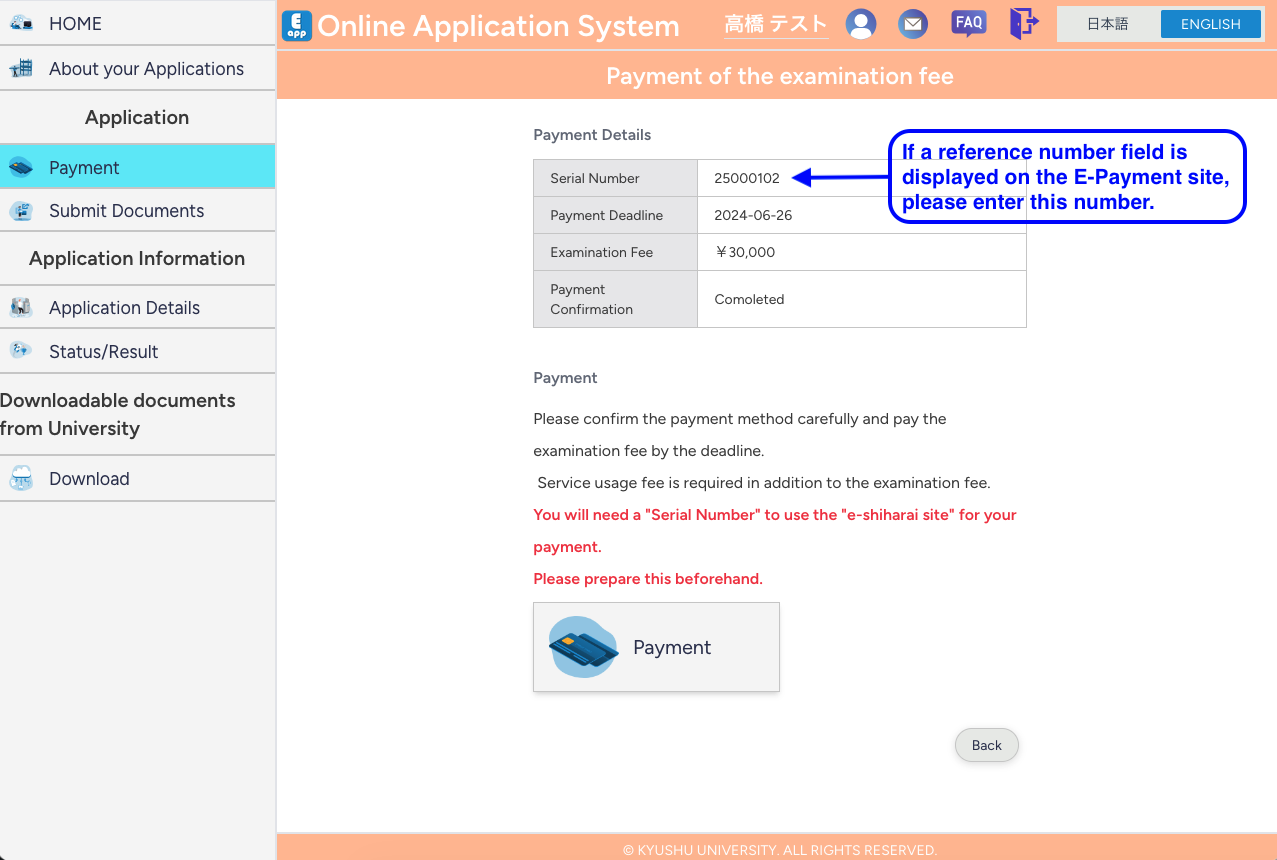
- Check information about payment of the examination fee
- Check the confirmation status of payment
- Check the reference number required when using the external E-payment site
- From "HOME", click "Your Applications".
- From the "Your Applications", select the application for which you want to check the examination fee payment instructions.
- From "About Your Applications", click "Payment" (or equivalent payment-related menu).
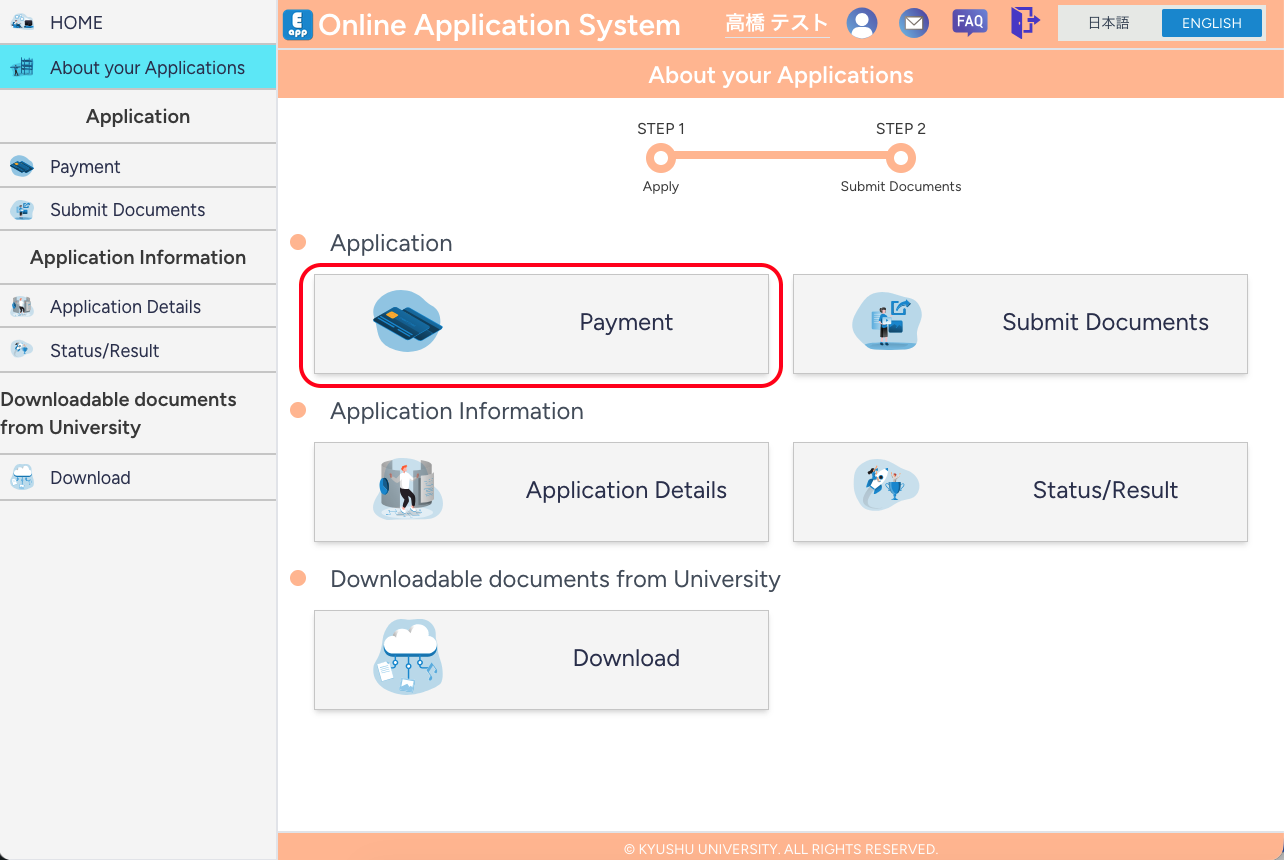
- The examination fee amount and payment methods differ depending on the examination category. Please also check the application guidelines.
- After you pay the examination fee and upload/submit the proof of payment, it may take some time before the status of "Payment Confirmation" changes to "Confirmed".
- When using the E-payment service, you may be asked to enter a serial number.
- In that case, please enter the serial number shown on the "Payment of the examination fee" page.
8. Downloading Examination Admission Ticket, etc.
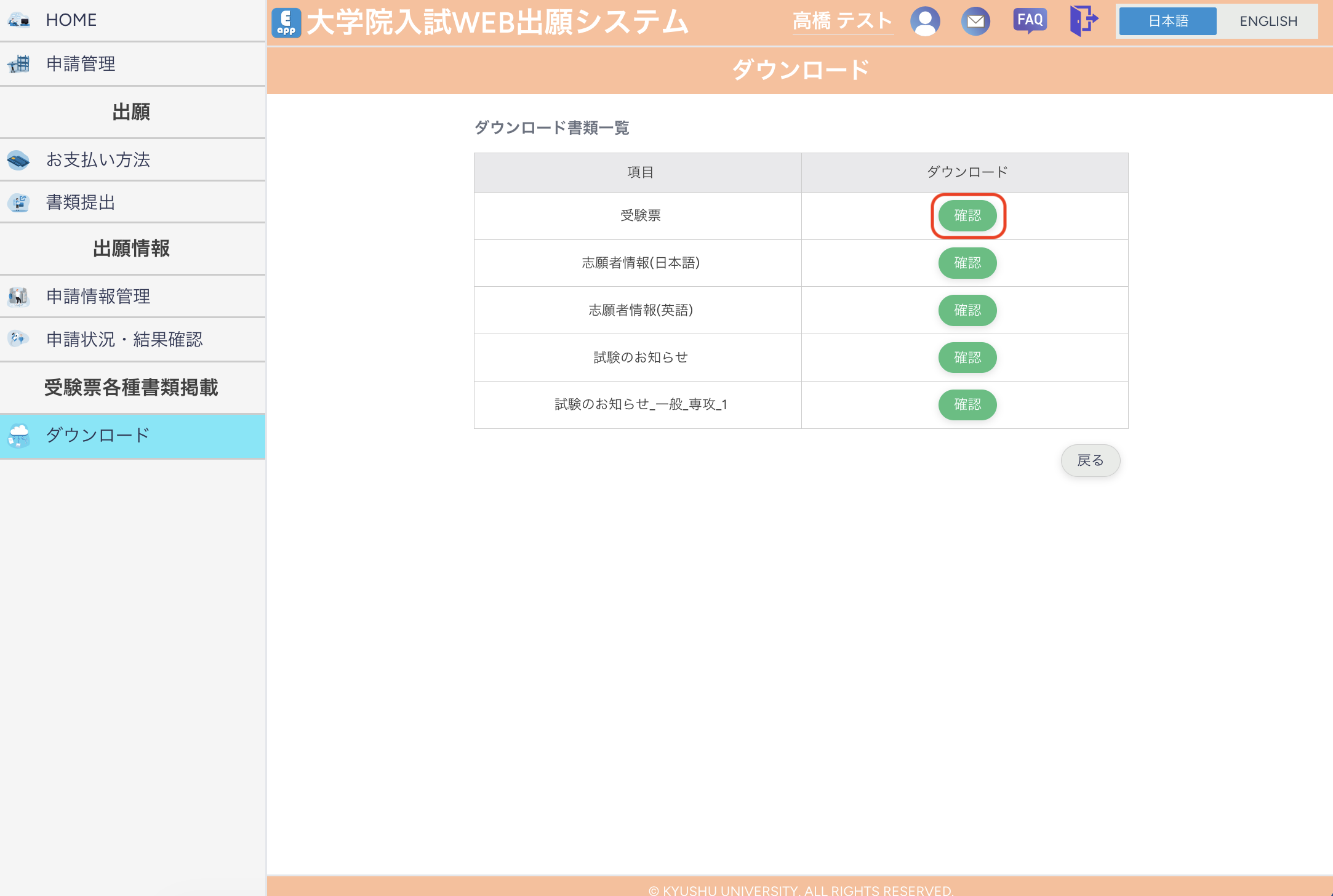
You can download the examination admission slip, applicant information, and documents related to the examination.
- From "HOME", click "Your Applications".
- From the "Your Applications", select the application for which you will download the documents.
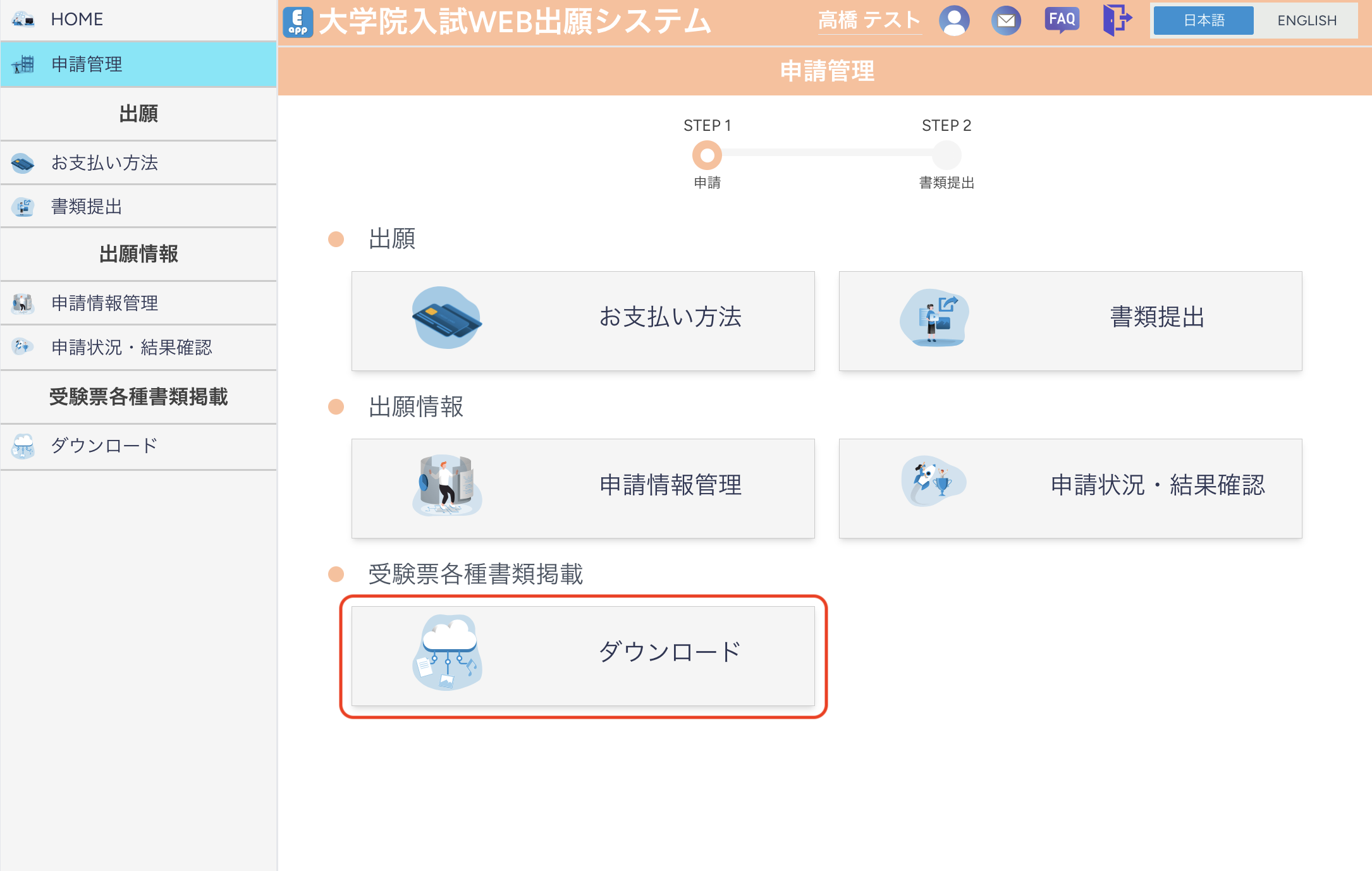
- From "About Your Applications", click "Download".
- The period when documents become available differs for each examination category.
If a document does not appear in the list, it may not yet be published.
- Click "Confirm" for each document to download it.
9. Resubmitting Documents
If the Academic Affairs Section or other administrative office sends you a "Returned for Correction" or "Request for Resubmission" notice, replace the corresponding document and submit it again.
9.1 When Documents Are Returned for Correction
- From "HOME", click "Your Applications".
- From the "Your Applications", select the application for which you will resubmit documents.
- From "About Your Applications", click Submit Documents".
- For the document that has been returned for correction, click "Upload" to move to the "Upload" page.
- Select the new file and upload it.
- After replacing all necessary documents, click "Submit" to complete resubmission.
9.2 When Additional Submission Is Requested
- From "HOME", click "Your Applications".
- From the "Your Applications", select the application for which you will resubmit or additionally submit documents.
- From "About Your Applications", click "Submit Documents".
- For the document that has been requested, click "Upload" to move to the "Upload" page.
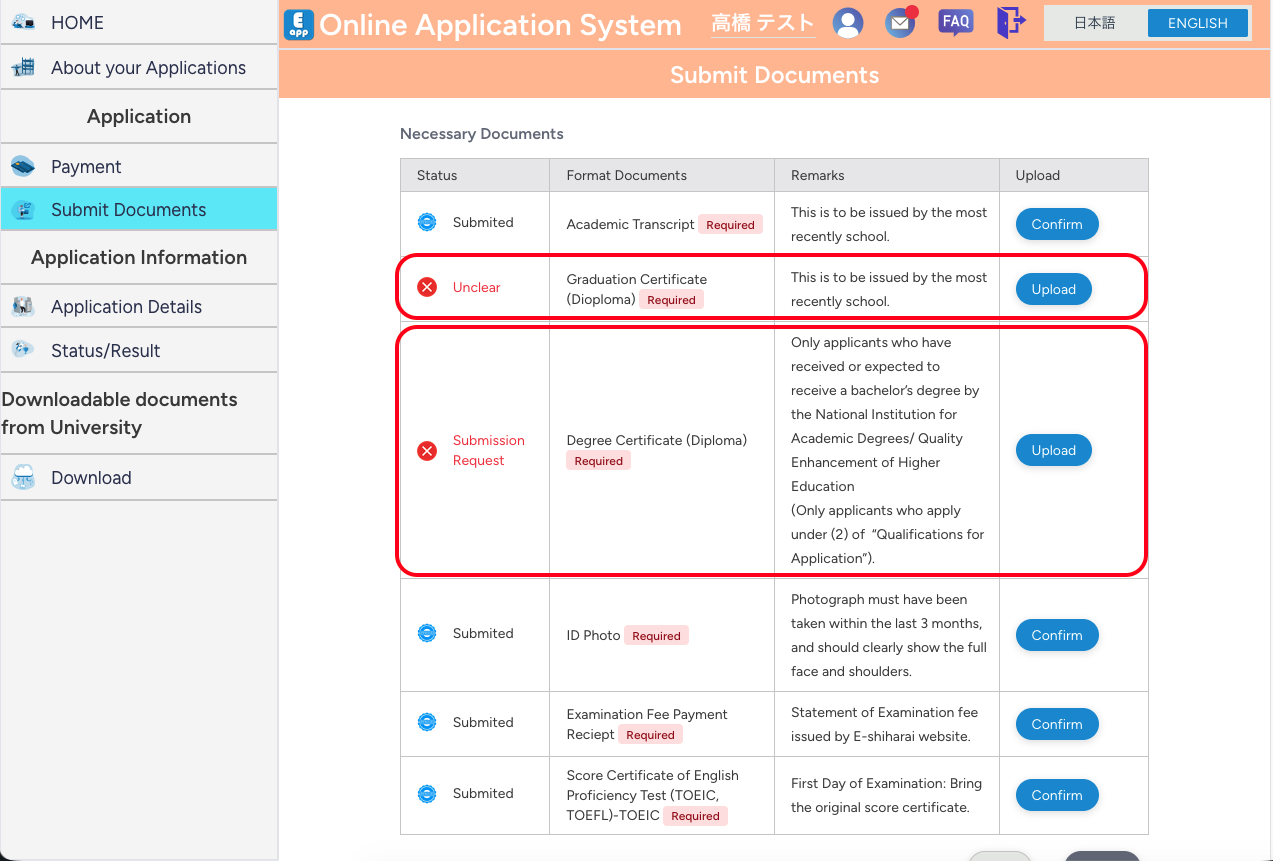
- Select the new file and upload it.
- After uploading all necessary documents, click "Submit" to complete submission.
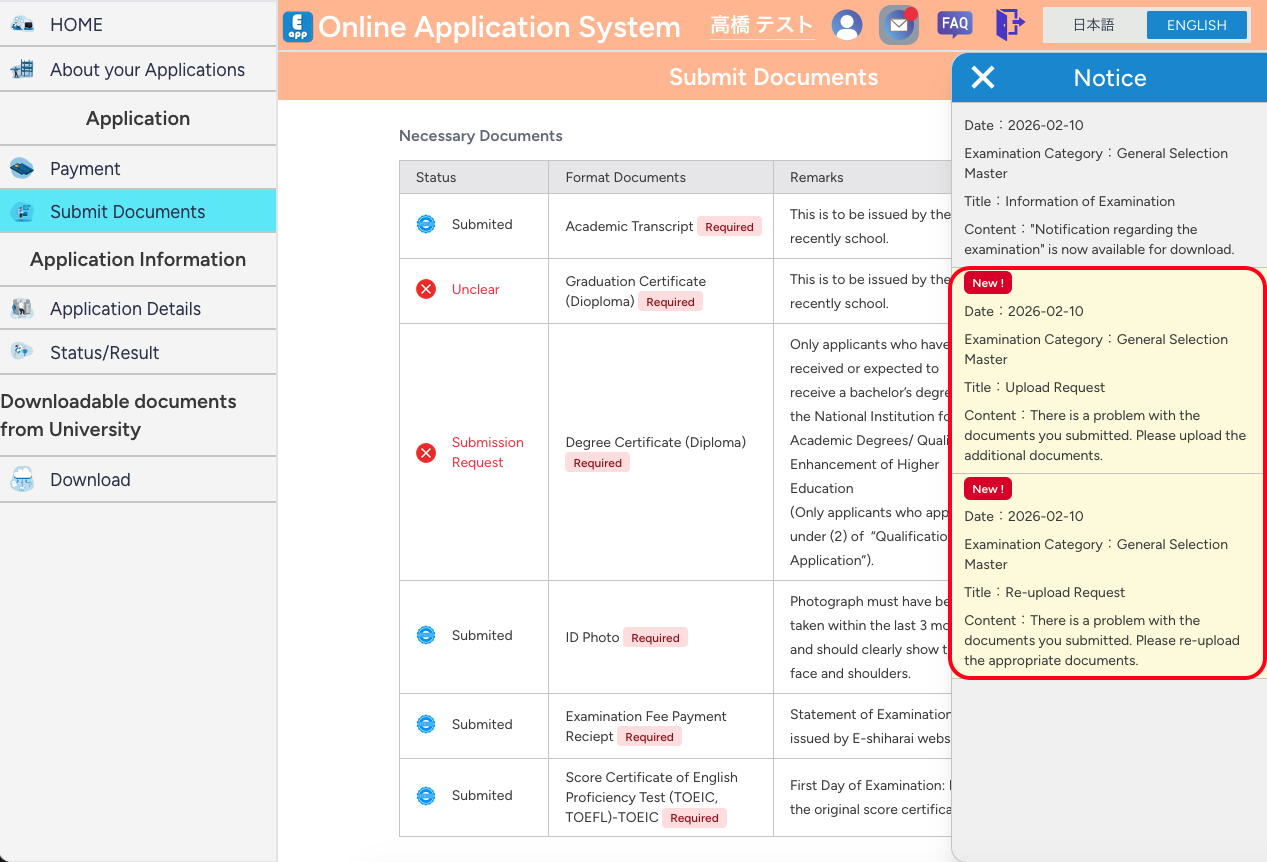
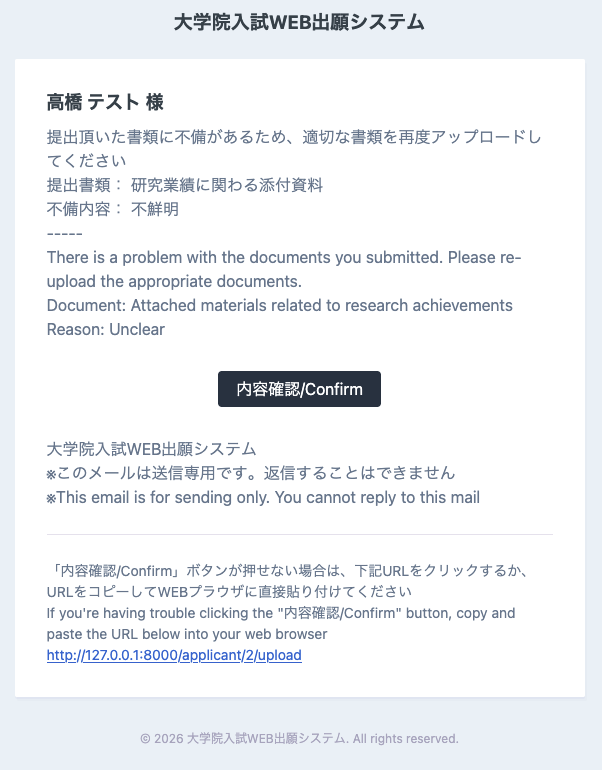
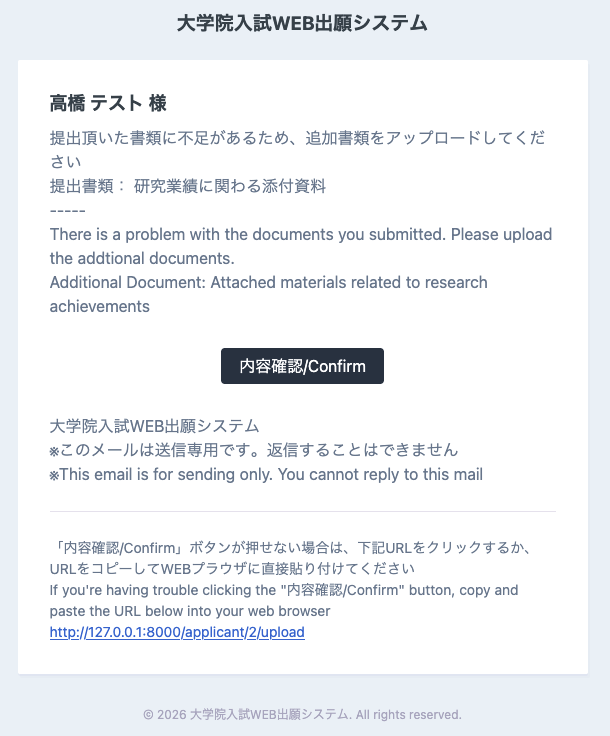
- Notifications about returned documents or requests for resubmission are sent both as notifications on MyPage and by email.
Please carefully check notifications on My Page and emails from the system.
10. User Account Settings
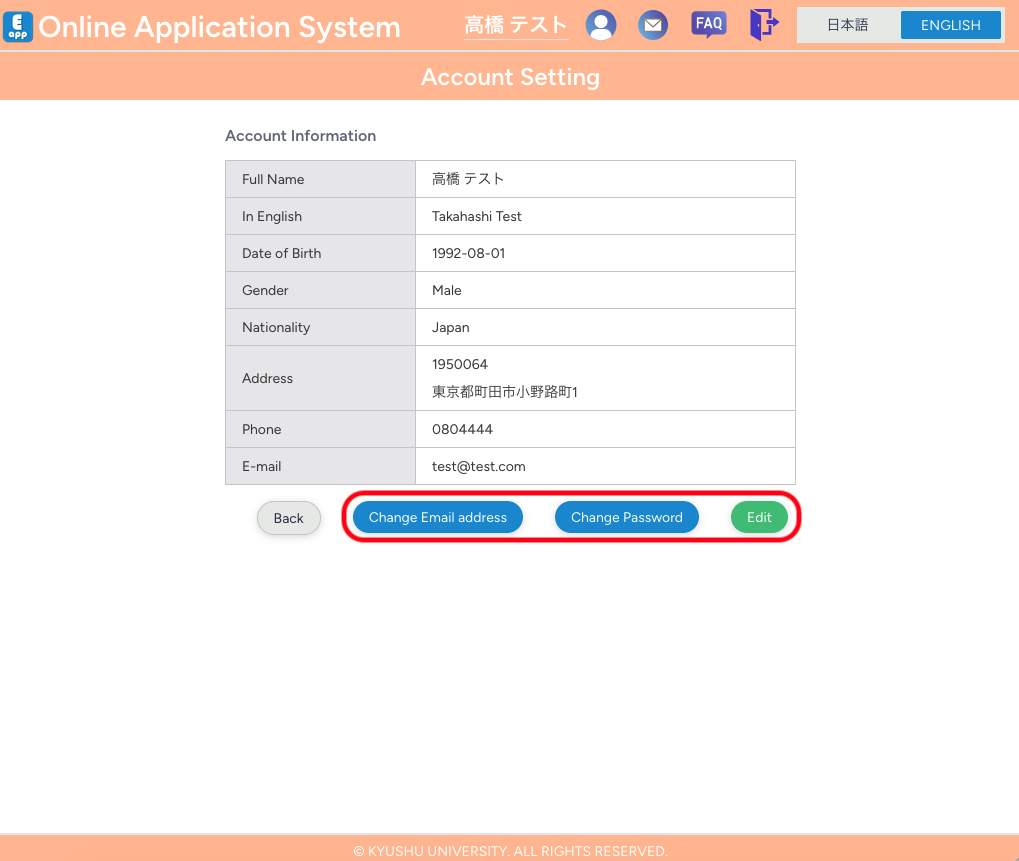
You can check and change your user information (email address, password, account information, etc.).
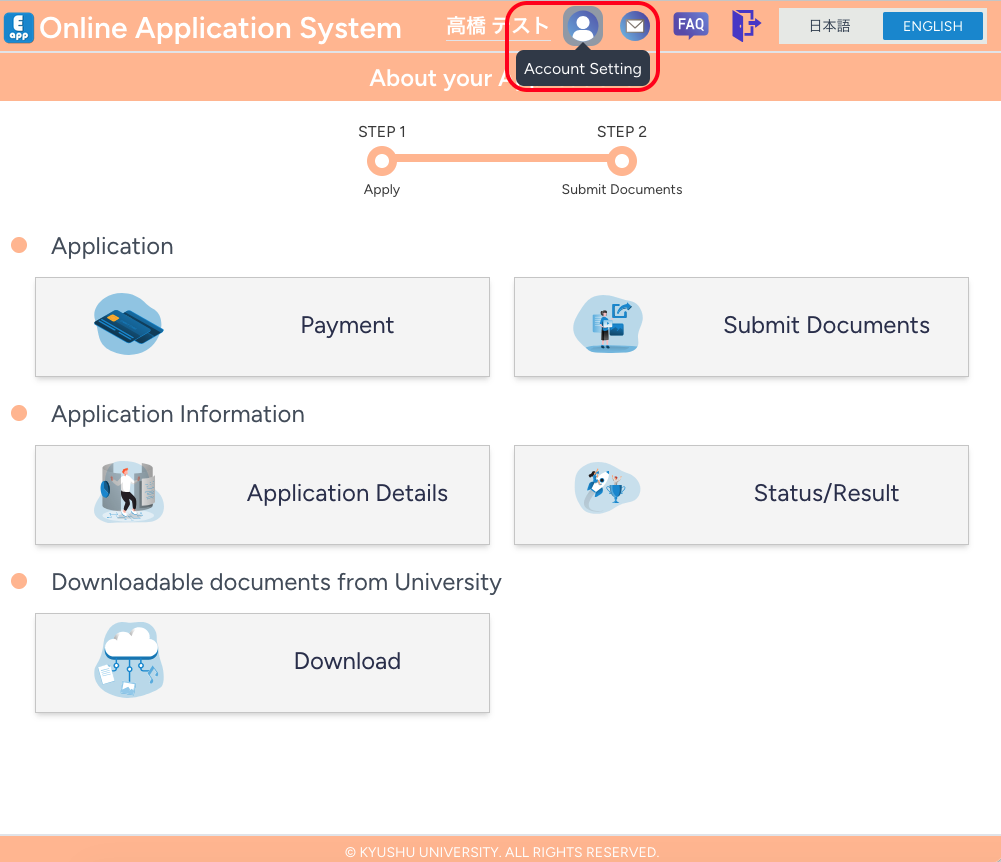
- Click "Account Setting" (person-shaped icon) at the top of the page.
- Click the item you want to change (change email address, change password, edit profile, etc.).
- Edit the information and click "Change".
11. Checking Notifications
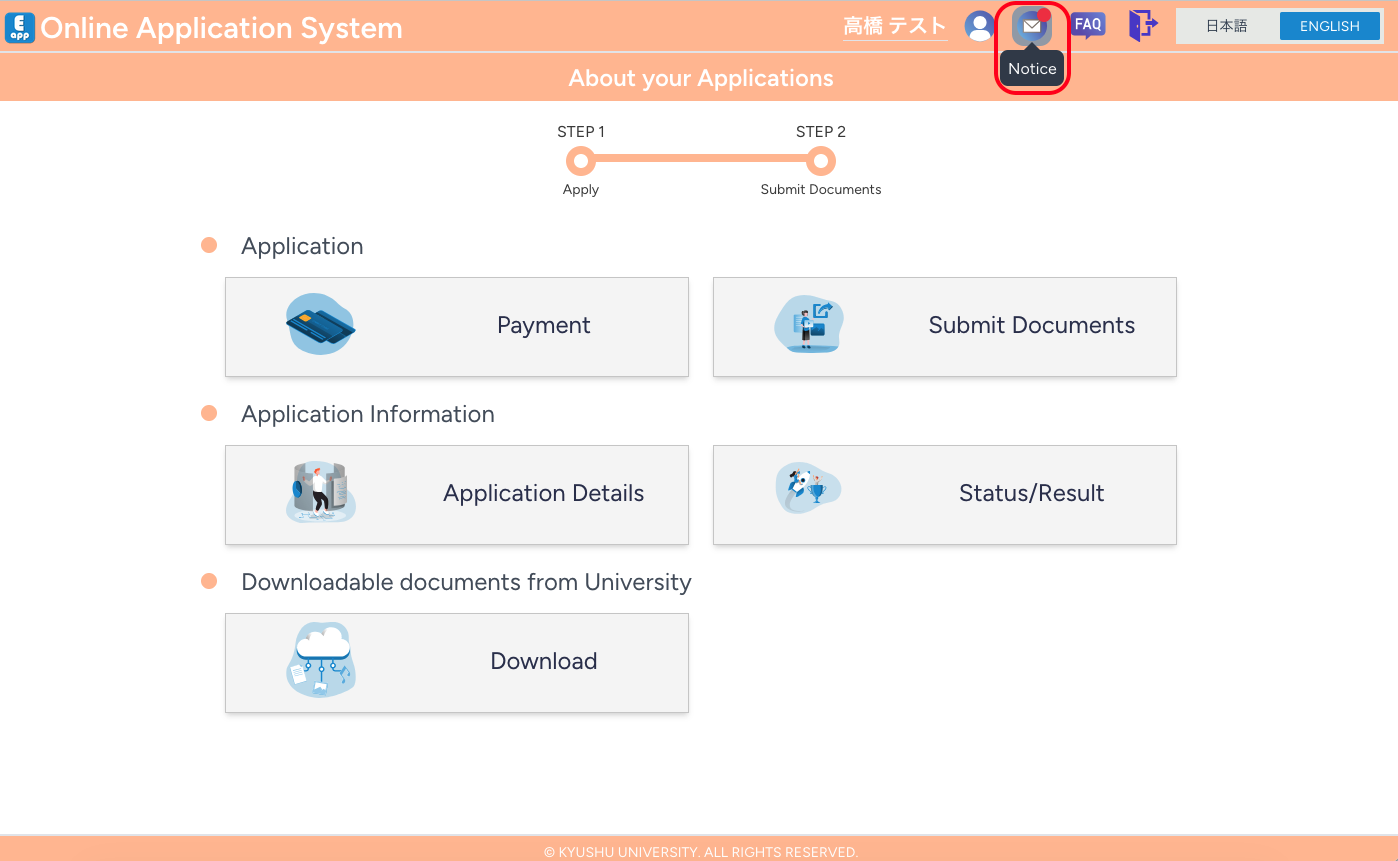
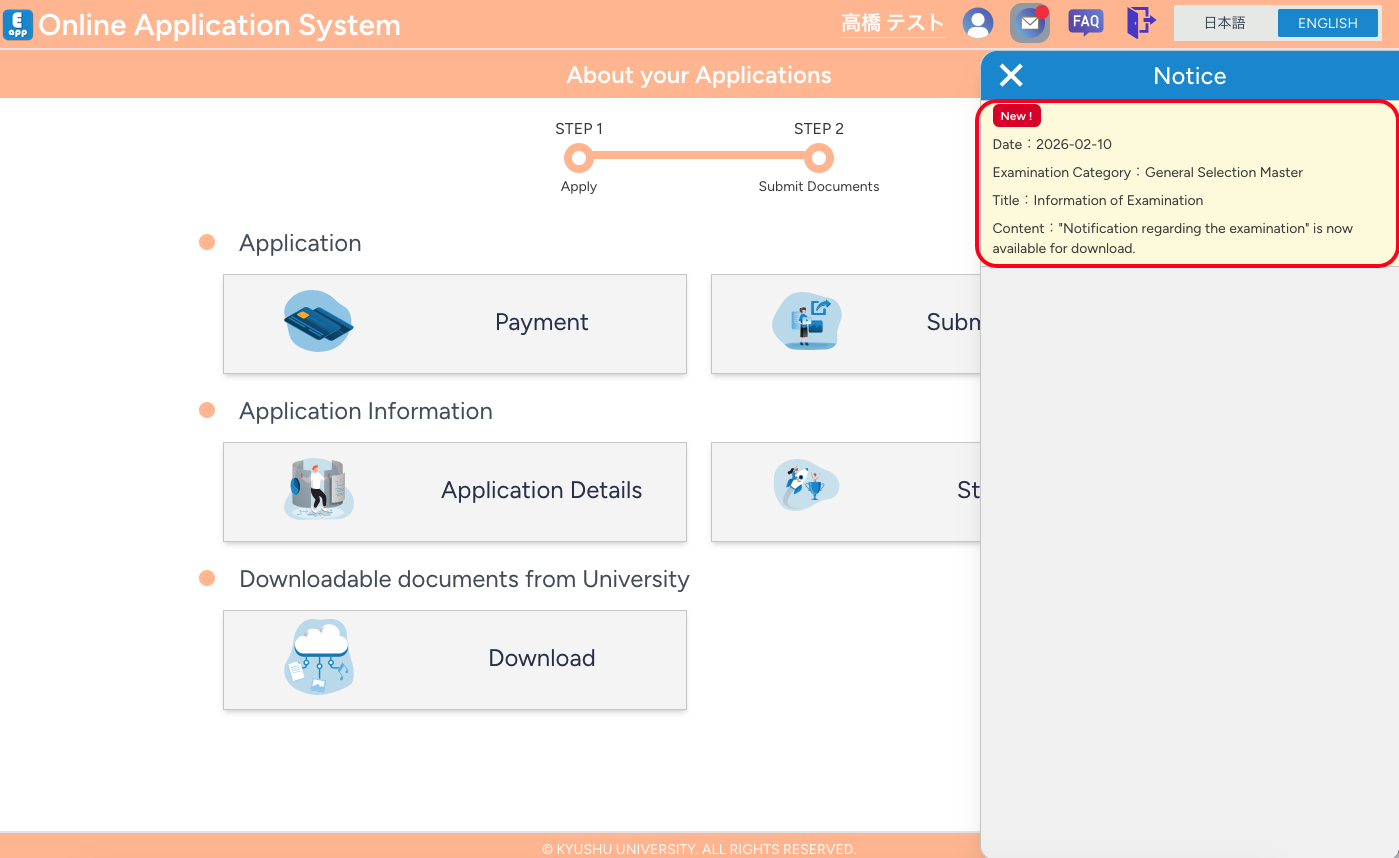
- Notifications from the system (such as returned documents, resubmission requests, publication of examination admission ticket, etc.) can be checked from the envelope/mail icon at the top of the page.
- By clicking "Notice", you can move directly to the relevant application page or document submission page.
- Important information is also sent by email. Please follow the instructions in the email, log in to the system, open the relevant application page, and perform the required actions.
12. FAQ (Frequently Asked Questions)
12.1 Application Flow and Application Categories
12.1.1 How to proceed from Pre-screening to Application Submission
- First, select Preliminary Screening for Application Eligibility as the application category, create an application, and enter the required information, then submit the pre-screening application.
- If the screening result is Pass, you will be able to upload and submit additional required documents.
- Follow Uploading and Submitting Required Documents to upload and submit the additional required documents and complete the application.
12.1.2 How to proceed from Screening of Work Experience to Application Submission
- First, select Application Request and Work History Review as the application category, create an application, and enter the required information, then submit the screening application.
- If the screening result is Pass, you will be able to enter additional required information and upload/submit the required documents.
- Follow Entering Application Information to register the additional required information (if you have already completed pre-screening, you may skip some steps).
- Follow Uploading and Submitting Required Documents to upload and submit the additional required documents and complete the application.
12.1.3 I want to withdraw my application
- You can withdraw an application from the "About Your Applications"** page by clicking "Withdraw Application".
- You can withdraw only before you submit all required information and click "Apply".
After that step, you cannot withdraw the application in this system.
12.1.4 I made a mistake and applied for the preliminary screening for application eligibility
If you have applied for the preliminary screening for application eligibility, you cannot apply for the application. (Duplicate application is not allowed for the same examination category)
If you are before applying, you can withdraw the application for the preliminary screening for application eligibility by clicking "Withdraw Application", and then you can apply for the application.
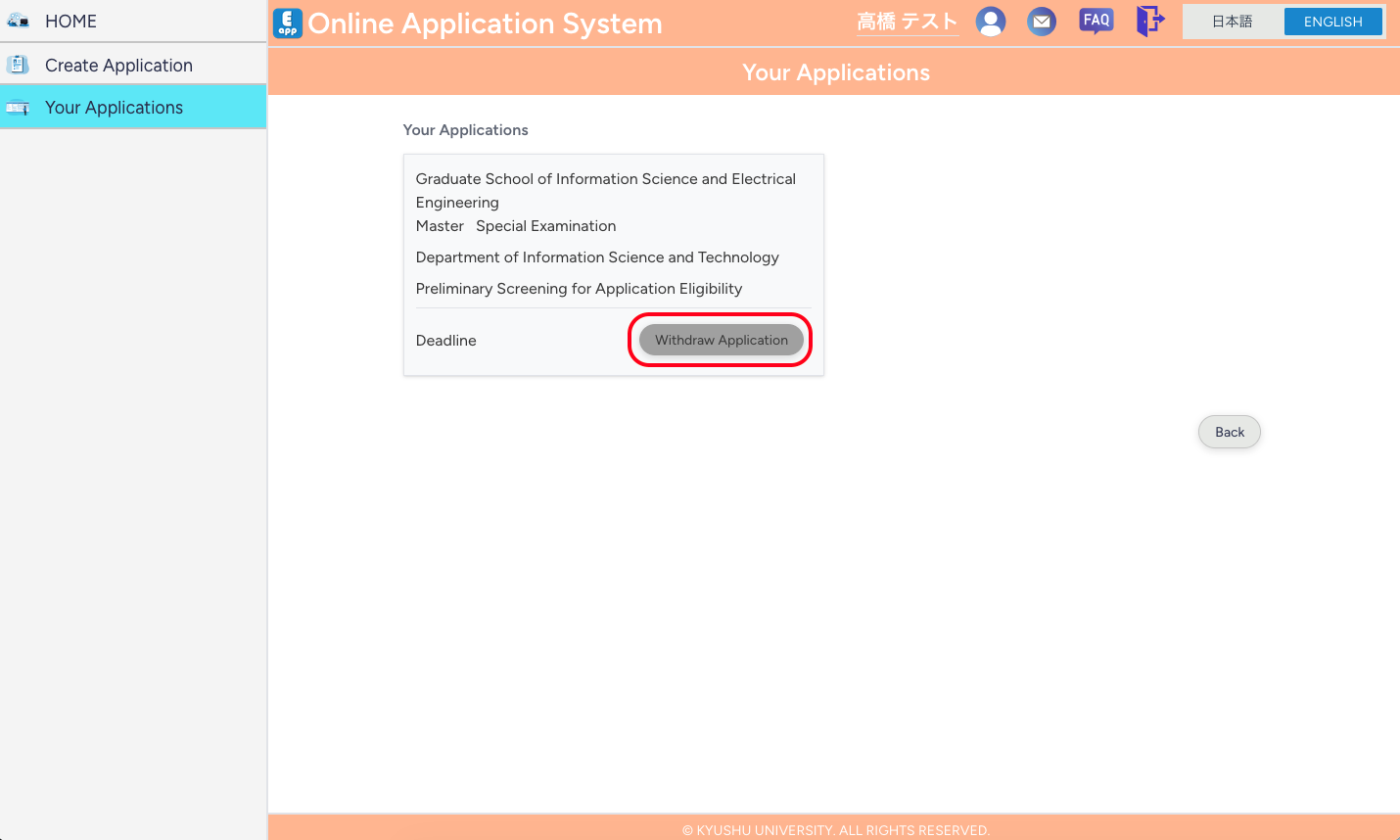
If the preliminary screening for application eligibility has ended, you can withdraw the application from the "Your Applications" page.
After applying, please contact the appropriate office.
12.2 Account, Login, and Email
12.2.1 I cannot log in
- Please carefully check that your email address and password are correct, including half-width/full-width characters and any spaces.
- If you have forgotten your password, use "If you forgot password" on the login page to send a reset email, then set a new password via the link in the email.
12.2.2 I am not receiving emails (verification email, password reset email, etc.)
- Confirm that the registered email address is correct.
- Check your spam/junk mail folder and trash folder.
- If you use domain-based filtering, please add the system’s sender domain (et.kyushu-u.ac.jp) to your allowed list.
- You can resend the email verification message from the email verification guidance page after logging in with your account.
- If you still do not receive the email after waiting for a while, please contact the appropriate office listed in Contact Information.
12.3 Entering Application and Applicant Information
12.3.1 I closed the browser while entering data. Is my data saved?
- If you clicked "Save", you can log in again, open the relevant application, and continue from where you left off.
12.3.2 I want to change the information I entered
- As long as you have not yet clicked "Submit" on the document submission page, you can edit your information from "Application Details".
12.3.3 Do I always need to upload proof of payment for the examination fee?
- If proof of payment appears in the list of required documents, you must upload and submit it.
(In some cases, the payment of the examination fee may be waived. Please check the application guidelines for the relevant examination category.)
12.3.4 I have paid the examination fee and uploaded proof of payment, but the status still shows "Examination Fee Not Approved"
- It may take some time from the moment you upload/submit the proof of payment until it is checked and the status is updated.
12.4 Uploading and Submitting Documents
12.4.1 I uploaded the wrong document
- As long as you have not yet clicked "Submit", you can replace the file.
On the document submission page, upload a new file for the same item, and it will overwrite the previous file. - If you notice the error after completing submission, please wait for the administrative office to return the document or request resubmission, or contact the appropriate office described in Contact Information.
12.4.2 What file formats and sizes can be uploaded?
- Allowed formats (such as PDF or image files (e.g., JPEG)) and "maximum file size" depend on "the type of document".
Please follow the information shown on the page for each document. - If the format or size does not meet the requirements, an error will occur. Please check in advance.
12.4.3 I received a notification that my document was returned or that resubmission is required. What should I do?
- Check the details of "Re-upload Request" or "Upload Request" in the notifications or in the application status page.
Then, re-upload the corresponding document from the "Submit Documents" page. - After replacing all required documents, click "Submit" to complete resubmission.
For detailed instructions, please read the notification email and the on-page messages.
12.5 Examination Admission Ticket, Results, and Downloads
12.5.1 When can I download the examination admission ticket and examination-related information?
- Once documents are published, they will appear in a list on the "Download" page.
The publication date differs depending on the examination category.
12.5.2 Where can I check my examination result?
- On the "Status/Result" page, you can check the result if it is published there.
- In some examination categories, results are not published via this system.
Please check the application guidelines for details.
12.5.3 I cannot open the downloaded PDF
- To view PDF files, you need a PDF viewer such as Adobe Acrobat Reader.
- Please update your viewer to the latest version, or try another browser or device.
- If you still cannot open the file, try downloading it again or contact the appropriate office.
12.6 Others
12.6.1 How can I know if the system is under maintenance?
- Information about "system maintenance (period, content, etc.)" is displayed on the top page and login page.
During the displayed period, access to the system may be unavailable.
12.6.2 Can I use this system on a smartphone or tablet?
- As long as you have a web browser, you can access the system from smartphones and tablets.
- However, for tasks such as uploading documents or entering a large amount of information, we recommend using a PC.
12.6.3 I cannot solve my problem using this manual
- After checking the application guidelines for procedures and deadlines, please contact the appropriate office listed in Contact Information.
The contact office differs depending on the graduate school and department.
13. Contact Information
Inquiries about entrance examinations for the Graduate School of Engineering and the Graduate School of Information Science and Electrical Engineering
Office: Academic Affairs Section, Faculty of Engineering, Kyushu University
| Department | Phone | |
|---|---|---|
| All departments | +81-92-802-2723 +81-92-802-2724 |
kotkyomu@jimu.kyushu-u.ac.jp |
Inquiries about entrance examinations for the Interdisciplinary Graduate School of Engineering Sciences
Office: Interdisciplinary Graduate School Section, Academic Affairs Section, Faculty of Engineering, Kyushu University
| Department | Phone | |
|---|---|---|
| Department of Automotive Science | +81-92-802-3859 | kottougou@jimu.kyushu-u.ac.jp |
| Department of Applied Science for Integrated System, User Kansei Studies / Library Science | +81-92-802-6501 | kottougou2@jimu.kyushu-u.ac.jp |